Managing Access Rights
The redesigned Access Rights screen Beta lets you manage who can see and change projects, models, workspaces, data classes, and presentations from a single matrix.
This screen is a beta. Turn it on for yourself on your User Profile page with the Use the new access rights view switch. Access-rights links throughout the application then open the new view; the previous view stays reachable by direct link.
Turning on the new view
- Open your User Profile (personal configuration).
- Enable Use the new access rights view and save.
- Access-rights links across the application now open the redesigned screen. The switch is per user — each person turns it on for themselves, and it is off by default.
The access rights matrix
The screen opens on a matrix of users and groups against objects. A cell shows the access a holder has to that object. A compact filter bar across the top decides what the matrix contains:
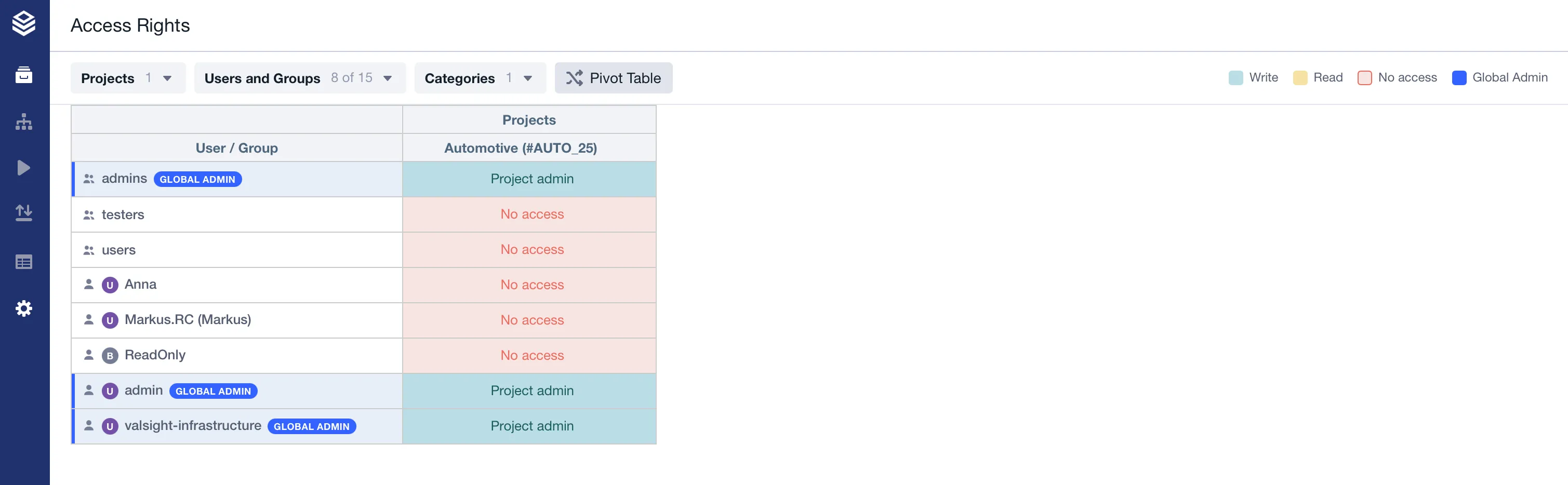
- Projects — pick one or more projects. You can limit the list to Only Projects I Administer and Show Hidden Projects.
- Users and Groups — filter the holders shown, by All, Users, or Groups, or search by name.
- Categories — choose which kinds of objects appear: Projects, Models, Workspaces, Data Classes, and Presentations.
Until you select at least one project and one category, the matrix stays empty and prompts you to make a selection.
Reading the matrix:
- Holder badges: each user or group shows its type — User, Group, or Global Admin.
- Object-specific labels: a cell’s label depends on the object — a project reads Can use or Project admin, a model Read-Only or Can edit, a workspace Limited access or Full access. No access means none. See Access Rights for what each level allows.
- Legend: explains the colors.
- Pivot Table: swaps the axes, so holders and objects trade places between rows and columns.
Editing access from a cell
Select a cell to open its editor, where checkboxes set the holder’s direct access to that object. The editor also explains the access it cannot change directly:
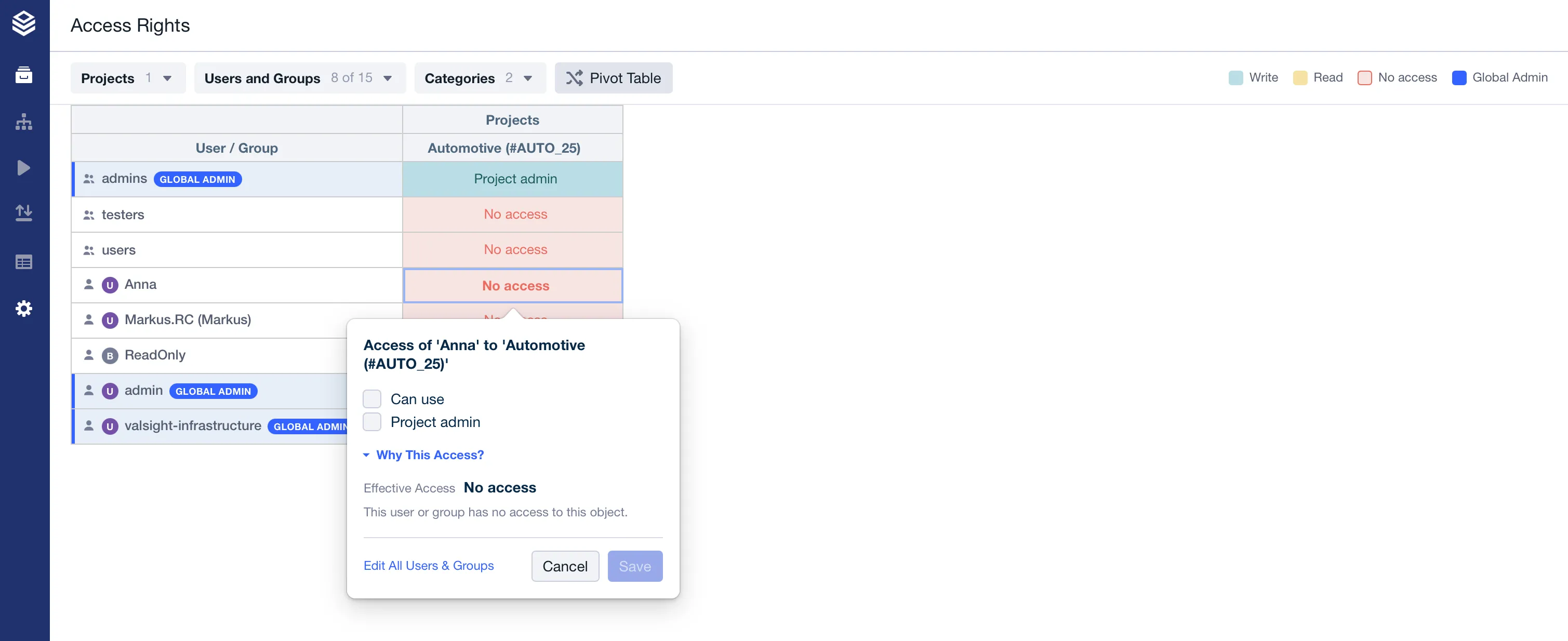
- Why This Access? expands a plain-language explanation of the holder’s Effective Access and where it comes from — for example Granted directly, Via group membership, Project administrator, or Blocked: no access to the parent project.
- When a holder already has access indirectly, the editor notes that the checkboxes set direct access only.
- When a direct grant currently has no effect — because the user has no access to the parent project, or their user type does not permit it — the editor says so.
Editing all access for a user or group
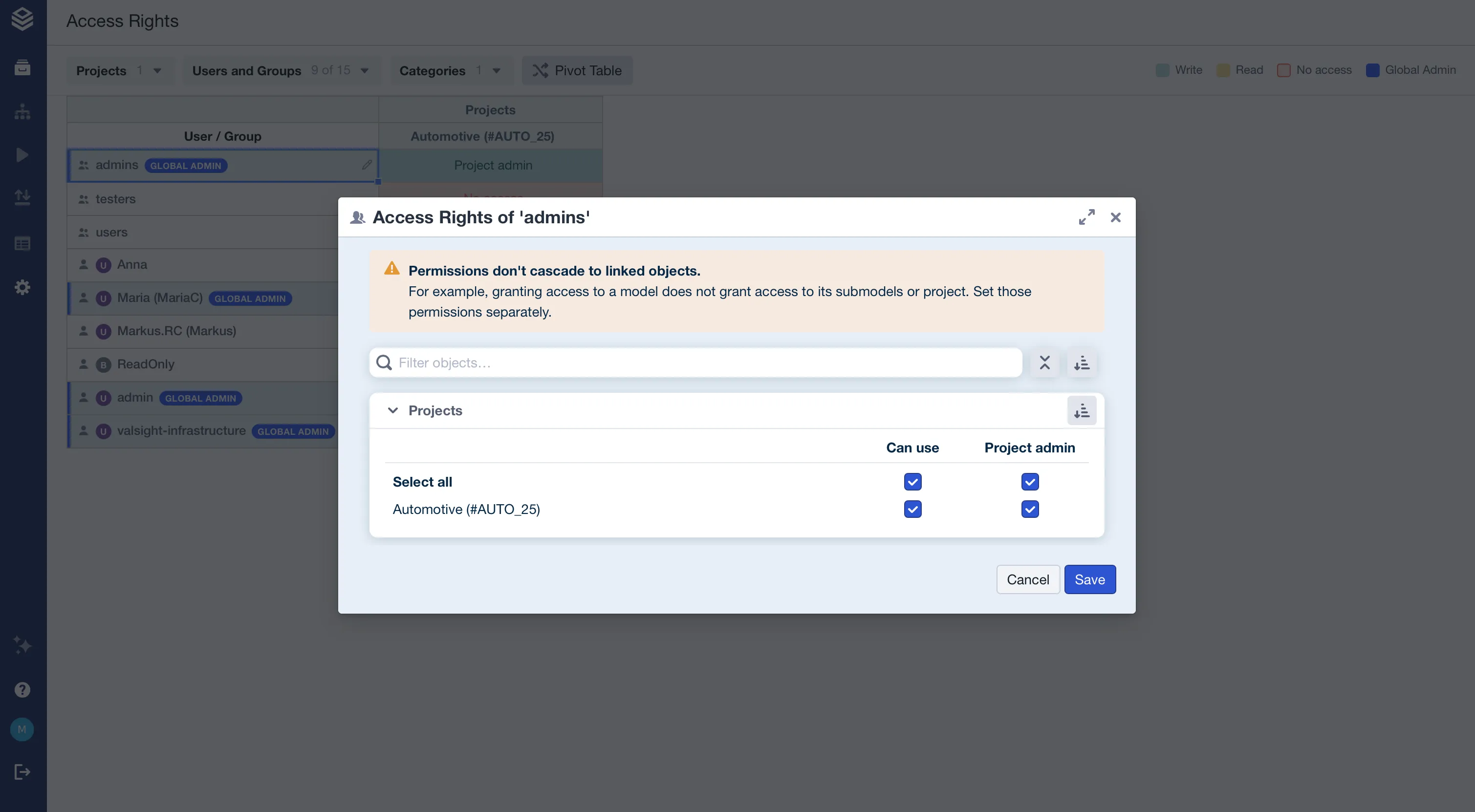
Choose Edit Access Rights on a holder to open Access Rights of ‘holder’, which lists every object that holder can reach.
- Grouped and sortable: objects sit in collapsible cards by category and project; sort the objects within a card, sort the cards themselves, and use Expand All or Collapse All.
- Filter: narrow the objects by name.
- No cascade: permissions don’t cascade to linked objects — granting access to a model does not grant access to its submodels or project. Set those separately.
Editing all access to one object
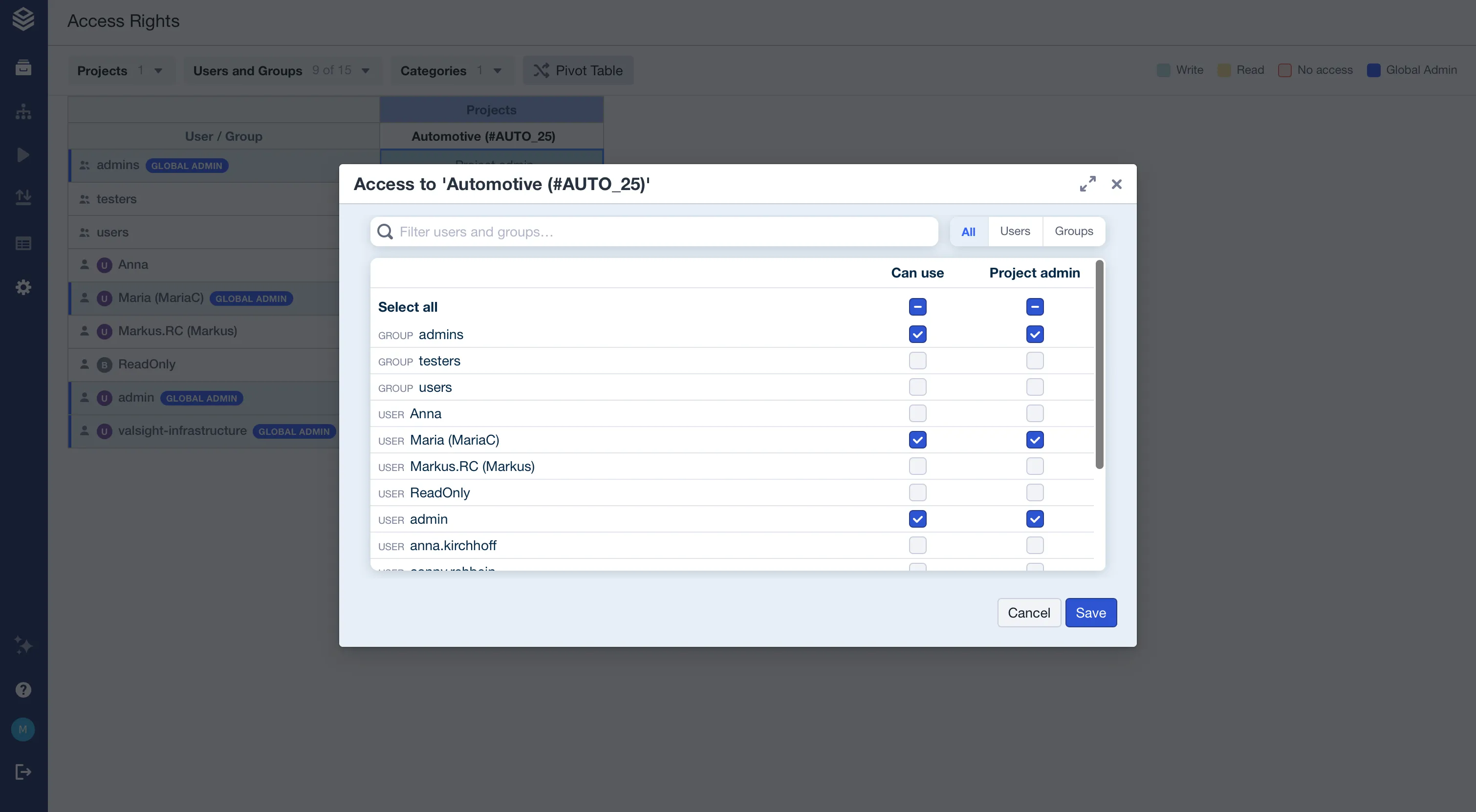
Choose Edit Access to This Object to open Access to ‘object’, which lists the users and groups with access to that object so you can adjust them together, with a filter and Select all.
- Model links: removing read access to a model can also remove access to its linked and parent models.
- Presentations: owner-only for writing — the owner always keeps write access.
Changing many cells at once
Select several cells to open the bulk editor, Edit Access for N Cells.
- Three-way control: for each right, choose Grant, No change, or Revoke. The editor shows whether the selected cells currently all, partly, or none have that access.
- Write implies read: granting write access also grants read.
- Apply: writes the change to every selected cell. Objects you cannot administer are excluded and called out, and a selection larger than the dialog’s limit asks you to narrow it.
Confirmations and safeguards
- Reaching an object: when a grant needs project access to take effect, a confirmation lists the users who will be added to the project so they can reach the object — you can Add to Project & Apply or Apply Without Adding to Project.
- Your own access: removing your own access — directly or through a group you belong to — prompts You Are Removing Your Own Access, because the affected objects then disappear from your table. Confirm with Remove Anyway.
- Out-of-date values: if some rights cannot be refreshed, the screen warns that the values shown may be out of date and offers Retry.
Related
- Access Rights: what each access level allows per object.
- Manage users and groups: create the users and groups you assign access to.