Assumption Versioning
When creating a new version of an Assumption, you save the Assumption with all its properties as well as all the Line-Items attached to it. When restoring a version, all changes which have been made since the creation of the version will be reverted, including all changes to Line-Items. Please make sure you create a current version of your Assumption if you wish to save those.
Create new versions of assumption
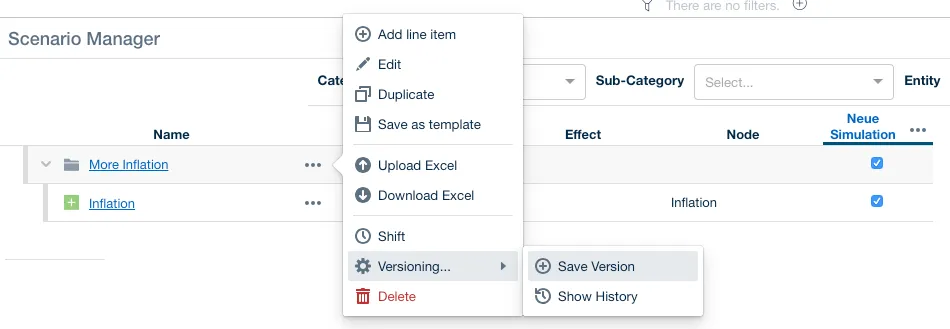
Open the Scenario Manager and select the options (3 dots) next to the Assumption you want to version. Select Versioning → Save Version to save the current state of the Assumption.
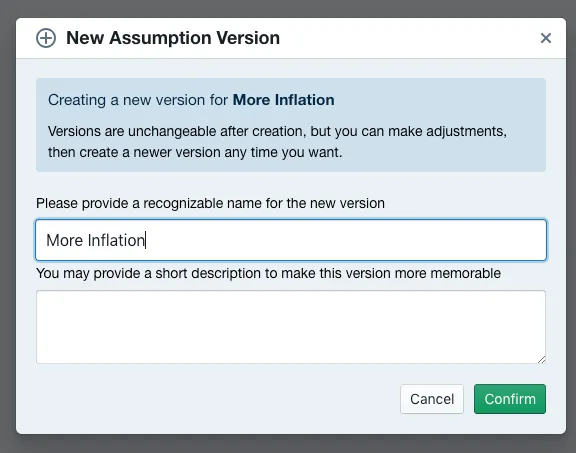
Now you can name the new Assumption version and provide a description if you chose to do so. Hit Confirm to save the Assumption Version.
Restore an assumption version
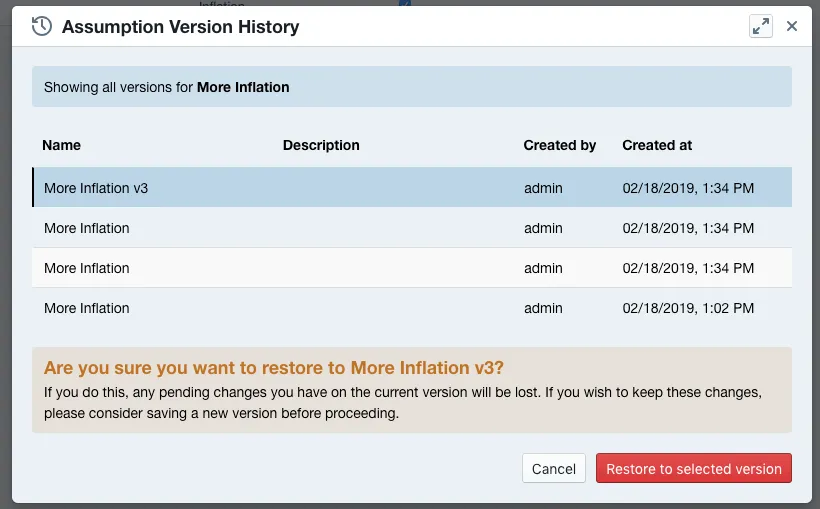
Open the Scenario Manager and select the Options (3 dots) next to the Assumption you want to restore. Select Show History to open all saved Assumption Versions. Now select the version you want to restore and choose Restore to selected version.
Restoring assumptions with Line-Item variants
Versioning Assumptions includes all Line-Items and all Line-Item Variants.
When restoring Assumptions that include Variants, the restored Variants will override all currently existing Variants.
Deleting assumption versions
Select Show History to open the Assumption Version History dialog, tick the versions you want to remove and use the Delete button in its footer. Valsight checks where those versions are used before deleting anything, which gives three outcomes:
- A shared version cannot be deleted. Valsight names them: ‘You selected currently shared version(s), which cannot be deleted. You should unshare the following version(s) before retrying to delete: …’.
- Dependent versions go with it. If other versions refer to the one you selected and are not used anywhere else, they are listed under ‘Proceeding will also cause the automatic deletion of the dependent version(s) as detailed below’ and are removed together with your selection.
- Versions still in use elsewhere block the deletion. ‘You cannot delete versions that are still in use elsewhere in the project.’ Clear those dependencies first, then retry.
Deleting a version cannot be undone. The dialog says as much before you confirm with I am sure. Please delete!
This is the same flow Scenario Versioning describes for scenario versions.