Hiding a Project
As a project admin, hide old or unused projects to declutter the Project overview and settings pages, then view or reveal them again when needed.
Steps
Hide a project
- Go to the Project Overview page.
- Locate the project you want to hide.
- Click the project’s three-dot menu (⋮).
- Select Hide.
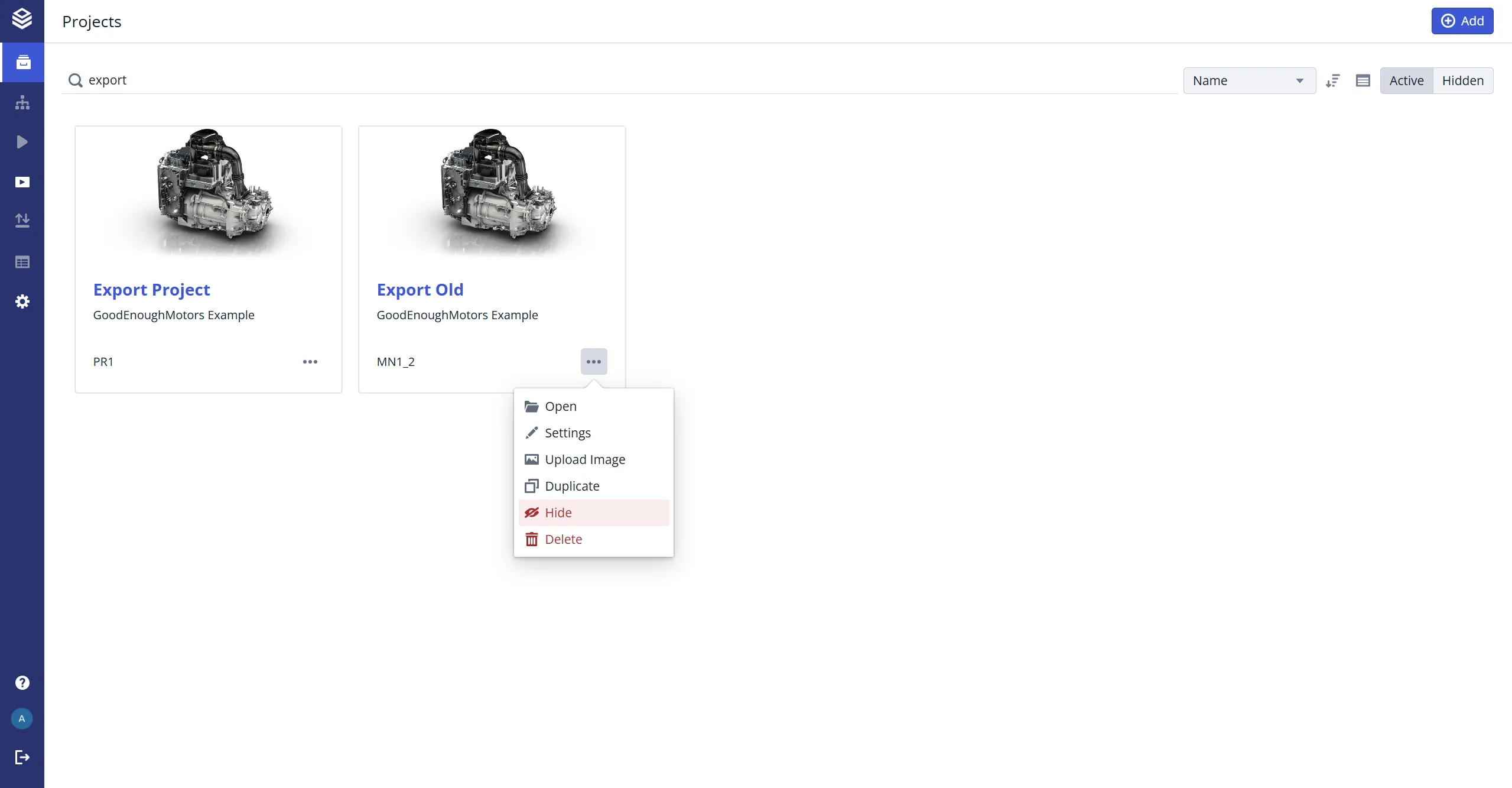
The project is removed from the main Project Overview list for all users, and from related settings pages, including Project Settings, Access Rights Settings, and Export Sharing pages.
Access a hidden project
Hidden projects remain accessible to users with the necessary permissions:
- Go to the Project Overview page.
- Click Hidden in the top-right corner.
- Browse the list of all hidden projects (hidden by you or others).
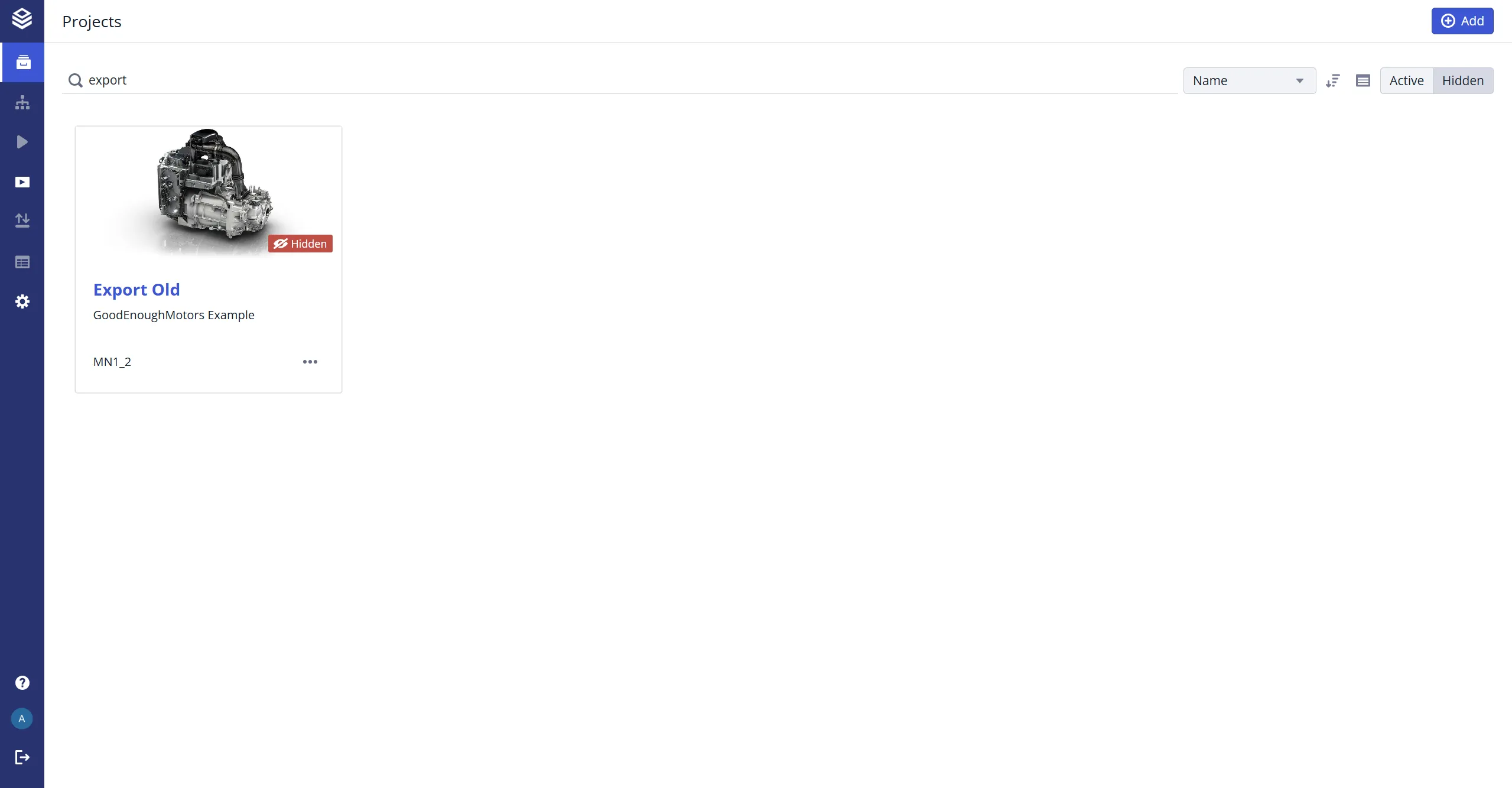
You can still duplicate, open, and work on a hidden project as usual, but its project settings are not editable.
Show hidden projects in other settings
In settings pages where hidden projects are relevant (for example, Access Rights or Export Sharing), enable the Show Hidden Projects checkbox to display them in the current view.
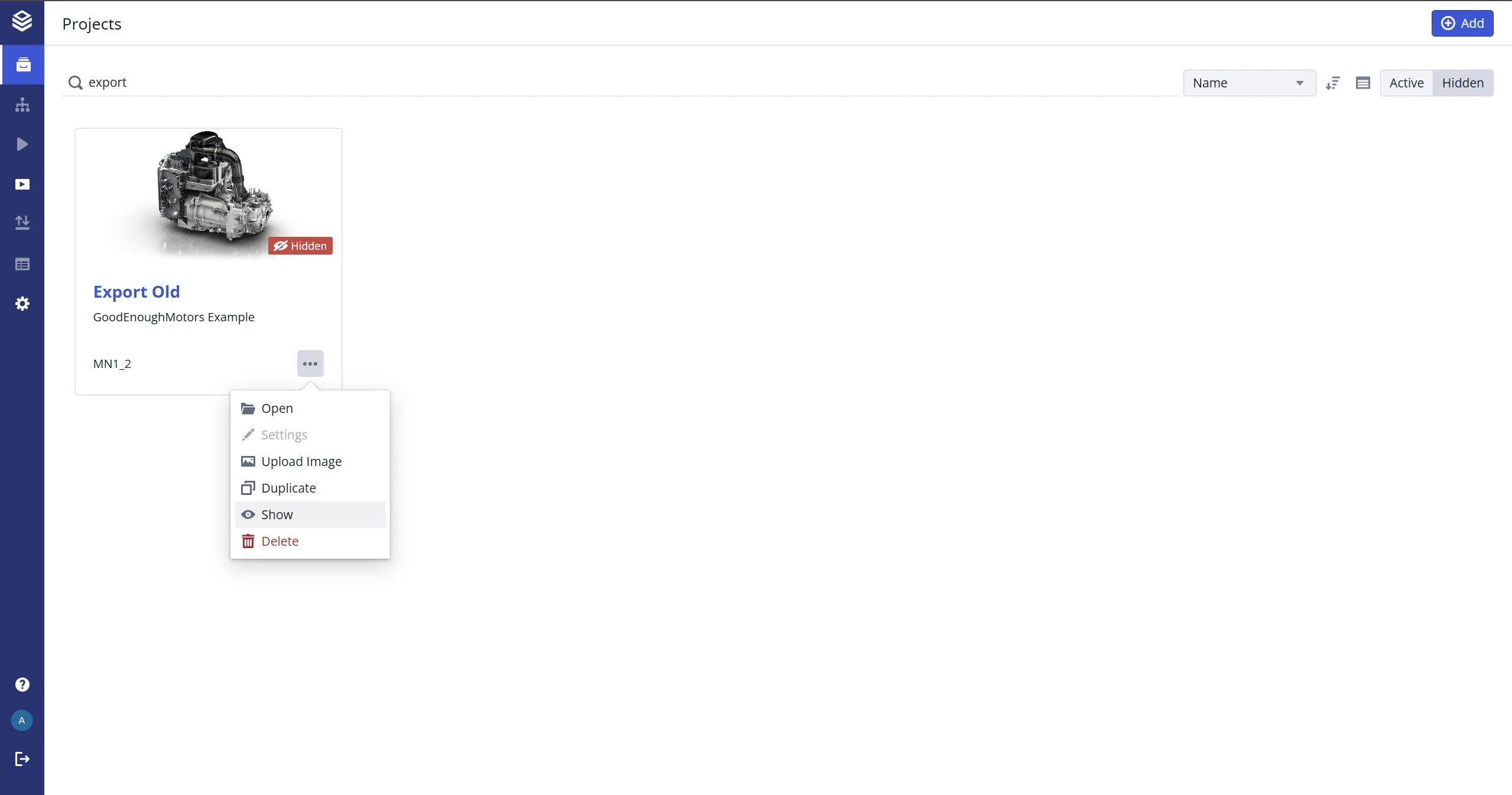
Reveal a hidden project
- Go to the Project Overview page.
- Click Hidden to show the hidden projects list.
- Click the project’s three-dot menu (⋮) and select Show.
Result
- After hiding, the project no longer appears in the active Project Overview list or related settings pages.
- After revealing, the project reappears in the active Project Overview list and all relevant settings pages for all users with access rights.
Limitations
- Hiding a project does not impact existing access rights. All users with access can still work on the project.
- To prevent users from making changes to a project instead, lock it (see Locking and Unlocking of Projects) or remove access rights for all current users (see Access Rights Documentation).