User Settings
Personal account settings in Valsight: how to manage your password, change your language, and work faster with keyboard shortcuts.
Password
Reset password
It is not possible to reset your password via Valsight.
To reset your password, you need to contact your project administrator or the Valsight support: support@valsight.com or +49 30 46799042
Change password
You can change your password by clicking on your account’s initials in the bottom left corner of the app. This will open the following tab where you can enter a new password.
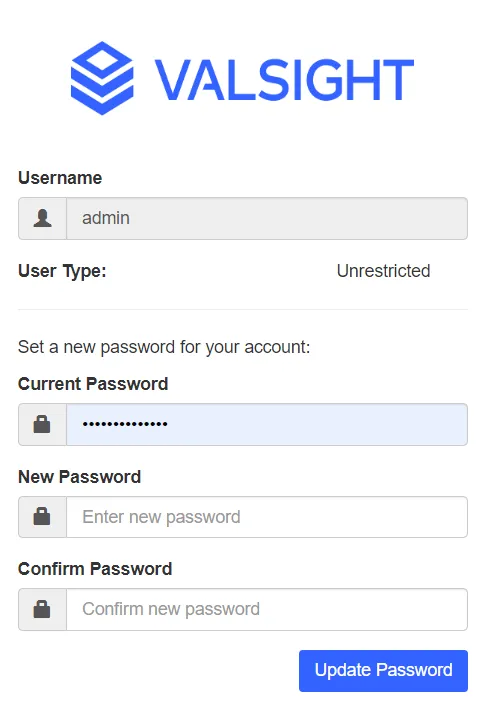
This only applies to Valsight Users that login with Valsight Usernames + Password. If your are using your companies Identity Provider (Single-Sign-On), change your password there.
Language settings
Global language settings
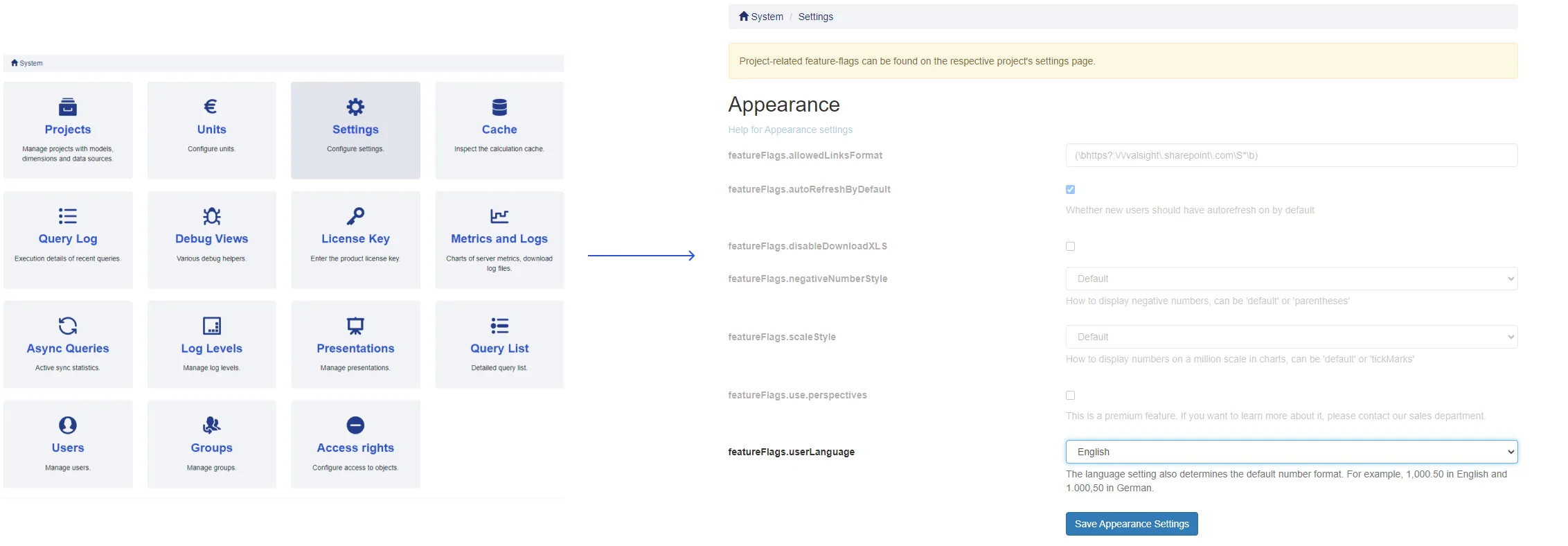
This setting is used to set the default language settings for the entire instance and each user on login. It is best to use this when setting up the Valsight instance to match your internal communication language.
To set the default language for all users of your instance, navigate to the Project Settings, scroll to the featureFlags.userLanguage setting and select the language you require.
User language settings
You can change the language specifically for your account through the User Preferences. Click the User icon at the bottom of the navigation bar. Then navigate to the language settings at the bottom and change it to the language you prefer.
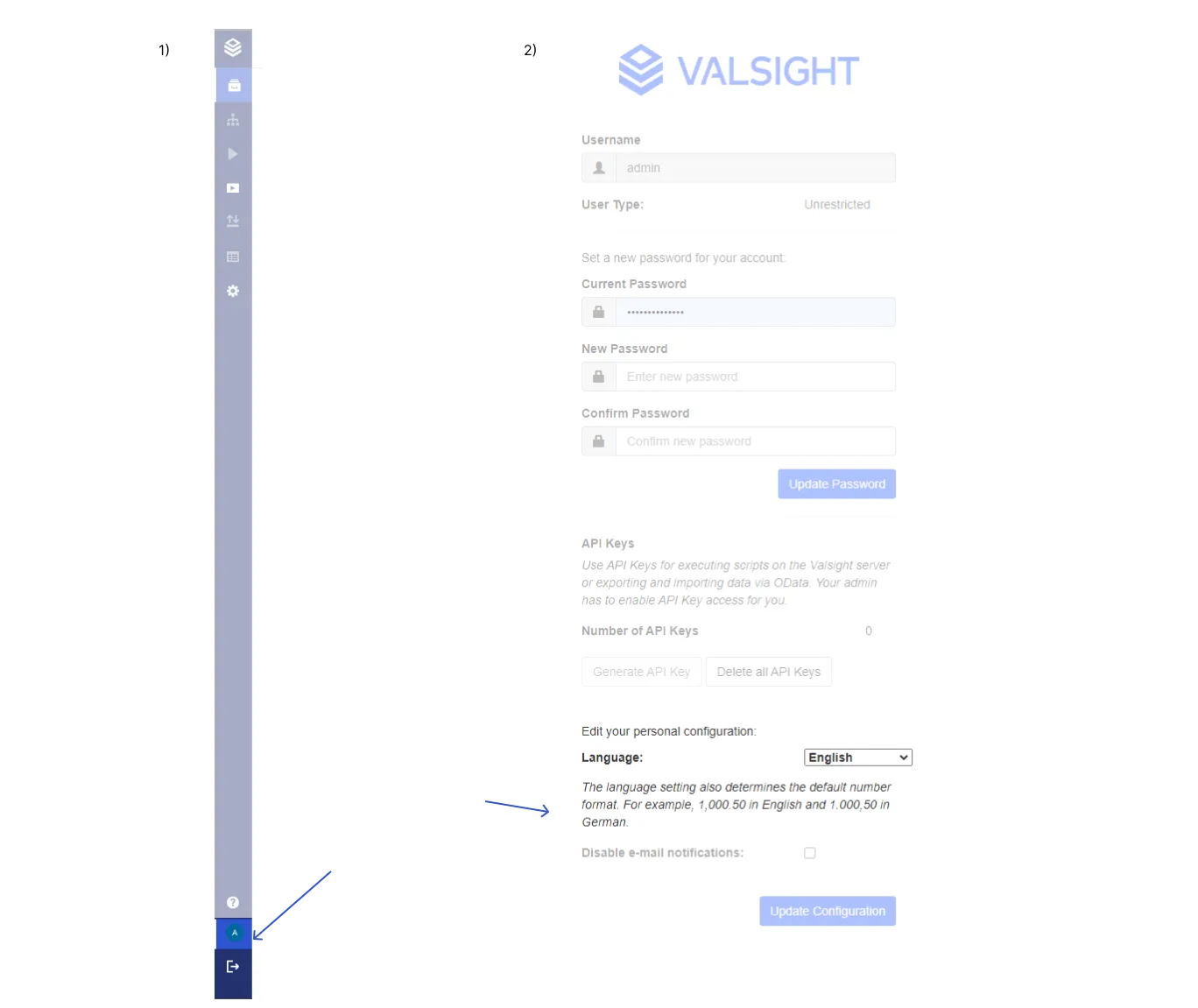
Please note that changing the language settings also effects the number format. (i.e. EN: 100,000.10 DE: 100.000,10)
Keyboard shortcuts
A list of all keyboard shortcuts in Valsight.
| Place | Action | Shortcut | Note |
|---|---|---|---|
| Model Editor | Search Nodes | CTRL + F (⌘ + F on Mac) | |
| Model Editor | Copy/Paste Nodes | CTRL + C/V (⌘ + C/V on Mac) | |
| Model Editor | Add Node to selection | CTRL + Click (⌘ + Click on Mac) | |
| Model Editor | Select all Nodes | CTRL + A (⌘ + A on Mac) | |
| Simulation Workspace | Search Sheets | CTRL + F (⌘ + F on Mac) | |
| Simulation Workspace | Jump between last used Sheet and Scenario Manager | CTRL + J (⌘ + J on Mac) | Deprecated in 5.1.0 |
| Simulation Workspace | Switch Sheets in the Tabbar | CTRL + arrow left/right (⌘ + arrow left/right on Mac), hit Enter to confirm | |
| Dimension Management | Open Dimension search | CTRL + F (⌘ + F on Mac) |