Using the Presentation Mode
A workspace is good in a group discussion, because assumptions can be adjusted on the spot. Sometimes you want the opposite: something formal and fixed that will not change under you while you present it. That is what presentation mode is for.
What it is
Presentation mode shows a snapshot of a workspace: a static, view-only copy taken at a moment you choose. Charts and data cannot be edited in it, and it opens in its own tab.
A snapshot is fully self-contained. It keeps no connection to the workspace it came from, nor to the data, levels, hierarchies or assumptions behind it.
When to use it
- You are presenting to a steering committee or a board and want a fixed version that cannot be altered mid-discussion.
- You want to hand someone a read-only view without giving them the workspace.
- You want to record where the plan stood at a point in time, as documentation of your work.
Configuration
Create a snapshot
-
Click the downward arrow in the top bar.
-
Click Create Presentation.
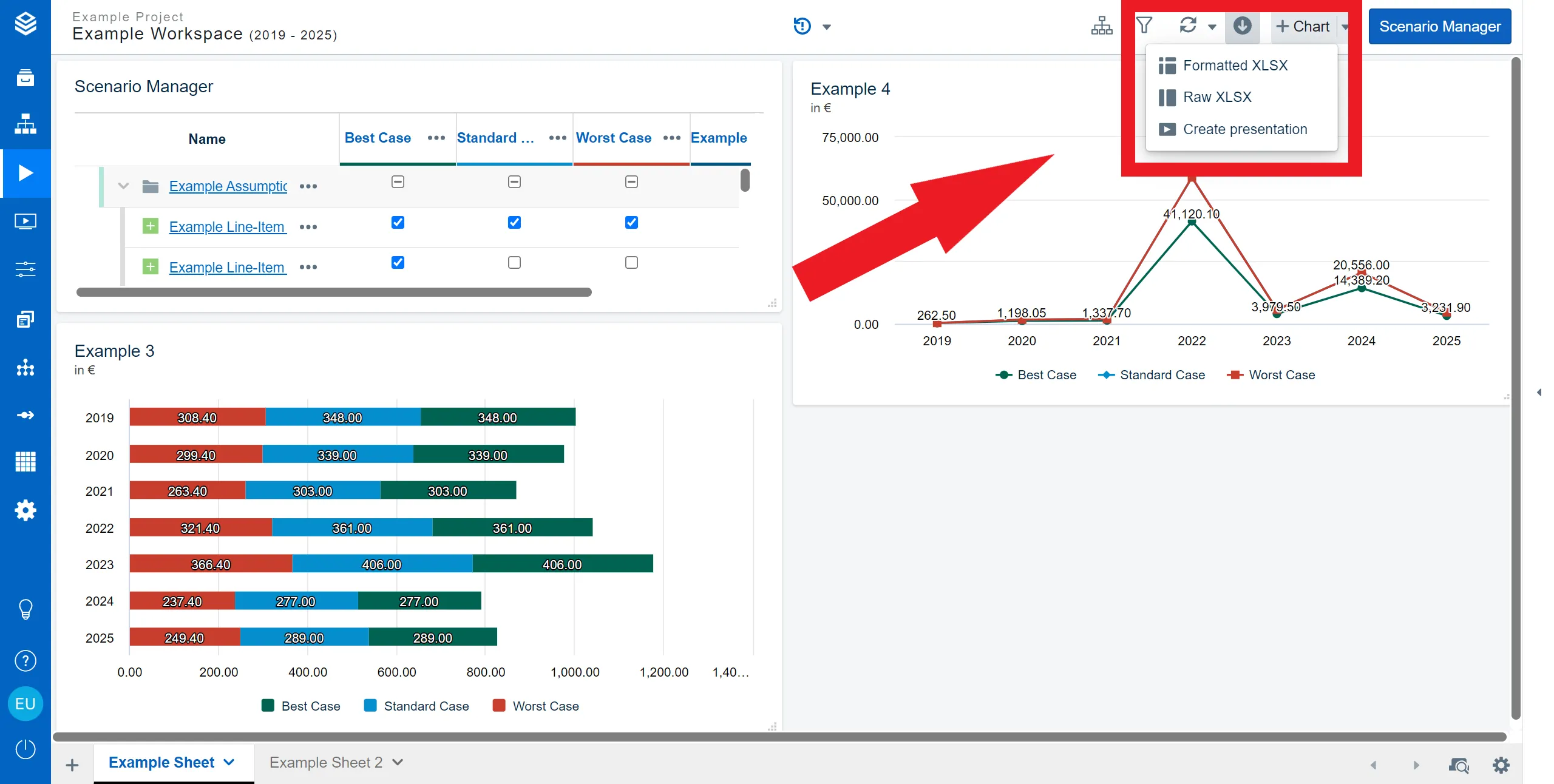
A notification confirms that the snapshot is being created. For a very large workspace this can take a moment.
Open and present it
-
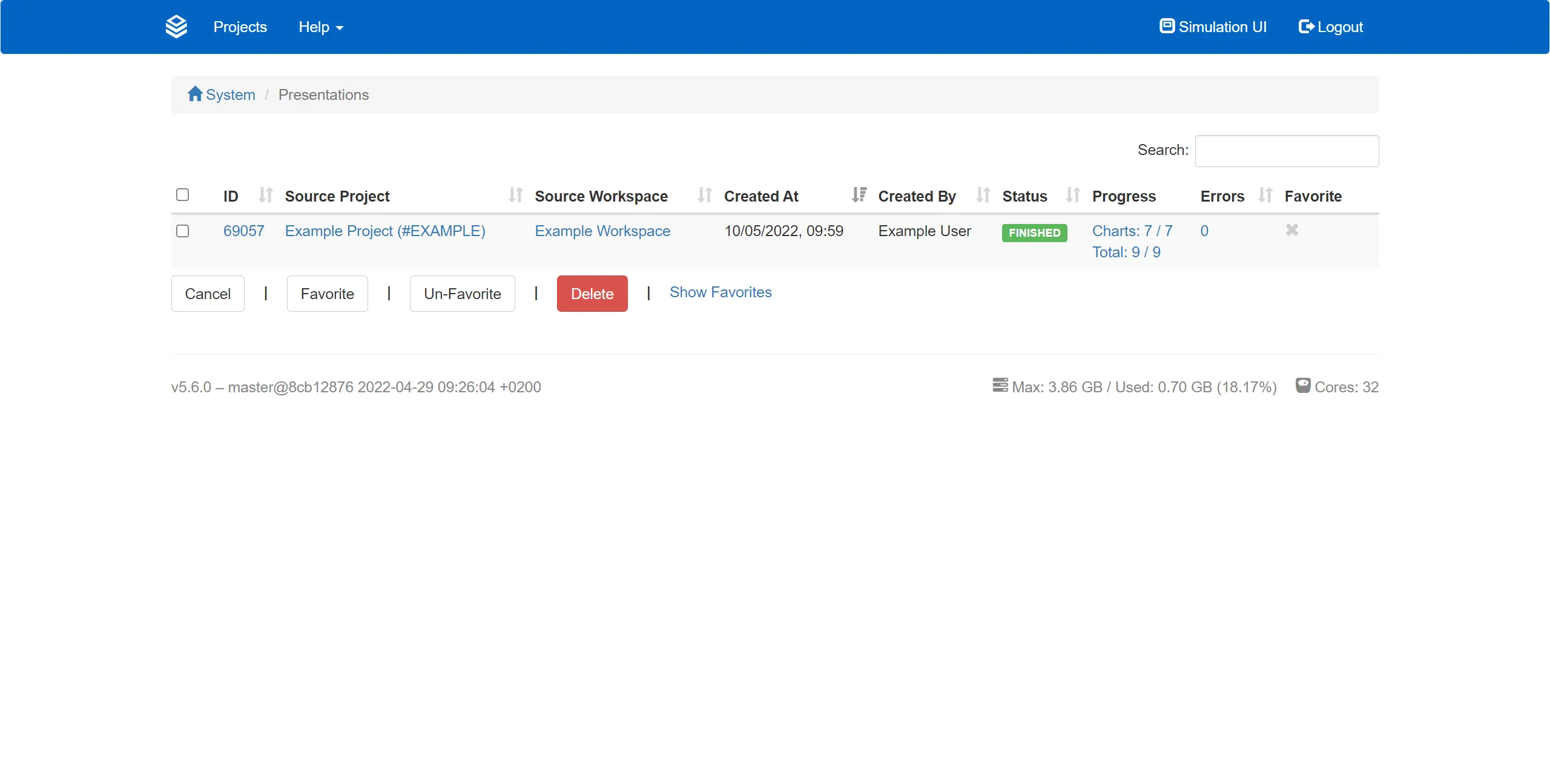
Go to the presentation space through the navigation bar. The menu lists your snapshots along with which workspace each came from, who created it and when.
-
Click the name of the snapshot. It opens in a separate tab.
-
Click Presentation Mode.
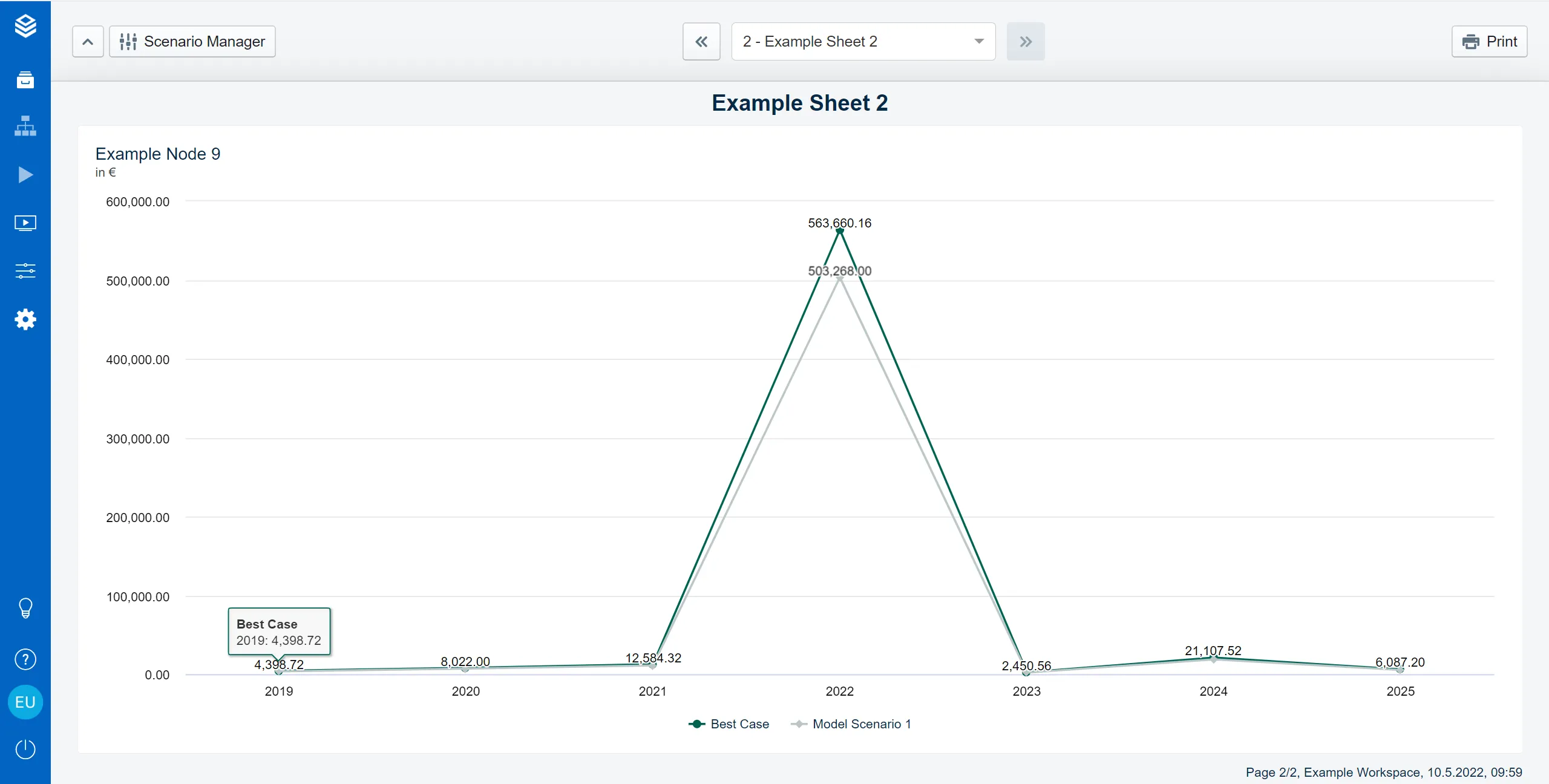
Once you are in, the arrows at the top of the page move through the presentation, and the button on the left opens the Scenario Manager if you want to show it. Print in the top right corner produces a printable version, which you can send to paper or to PDF.
Set what a sheet looks like in a presentation
Each sheet carries its own presentation settings, in the Sheet and Group Configuration dialog reached from the sheet tab bar. Under Presentation Settings the dialog notes that “These settings apply to this sheet when it is displayed in presentation mode”, and offers:
| Setting | What it does |
|---|---|
| Sheet Title | A title used for this sheet in presentations instead of its tab name. |
| Sheet Subtitle | A subtitle shown beneath that title. |
| Exclude from presentations | Leaves the sheet out of every snapshot of this workspace. |
Exclude from presentations is the only way to control which sheets a snapshot contains. Set it on the working sheets you do not want an audience to see, before you create the snapshot.
Good to know
- It is truly view-only. Charts and data cannot be edited in presentation mode. That is the point of it, not a limitation to work around.
- A snapshot never updates. Because it is self-contained, your model can advance, your data can be reloaded and your assumptions can get new values, and the snapshot stays exactly as it was. This is what makes snapshots usable as an archive.
- Four tile types cannot be drawn in a presentation. Sliders, Split Sliders, model Tree charts and Input Tables are all unrenderable there. The tile is still part of the snapshot and still occupies its place on the sheet, it just shows the message “This chart type is not supported in presentation mode.” instead of the chart. If that placeholder would be distracting, move those tiles onto a sheet you exclude from presentations.
- A large workspace takes a moment to snapshot. Give it time rather than clicking again.
Related
- Chart Types: the tiles a worksheet can hold before you present it.
- Split Sliders: a tile that stays behind in the workspace.
- Creating Charts: building the sheet you present from.