Line-Item Variants
Line-Item variants can be understood as different variations of a single Line-Item and are implemented in the Scenario Manager.
They allow you to simulate scenarios based on the same Line-Item but with each Line-Item variant having modifications in data.
The feature of Line-Item variants improves the clarity of the Scenario Manager and improves the usability of scenario simulations as it helps to group Line-Items.
Maximum Variants per Line Item
The amount of variants per Line-Item is configurable in the Valsight settings > Settings under ‘System’ and ‘featureFlags.maxVariantsLimitForLineItems’.
The default value is 20 variants per Line-Item.
Using Line-Item variants
Line-Item variants are used in the Scenario Manager and can be created, edited, and deleted via the Line-Item settings.
To create a Line-Item variant:
- Open the Line-Item a variant should be created for
- Click on the plus on the right side of the window
- Name your Line-Item variant
- Deleting a Line-Item variant can be done via the drop-down next to the variants name
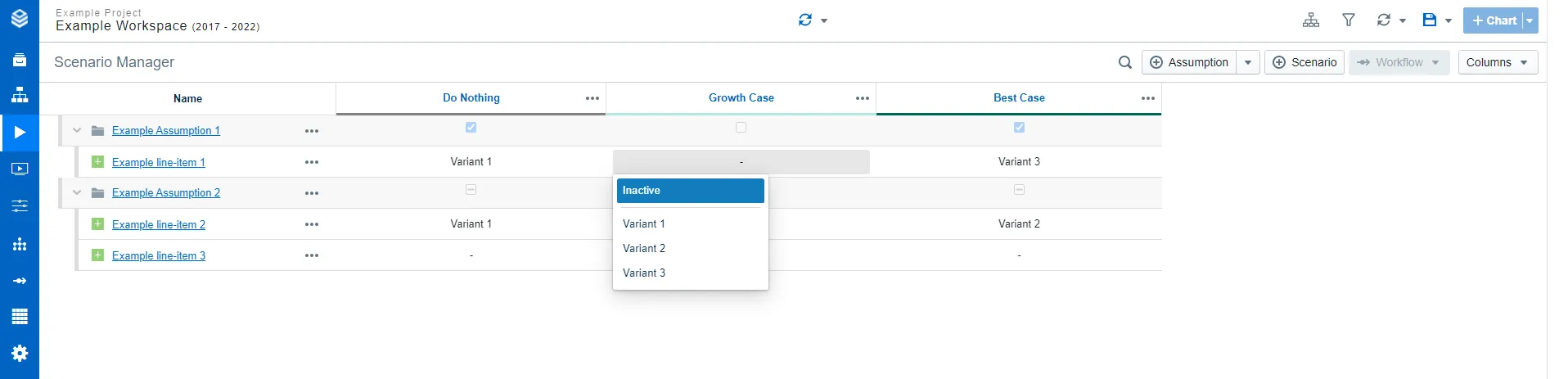
To change the Line-Item variant or deactivate the Line-Item for a scenario, navigate to the Line-Item drop-down menu. Select either another Line-Item variant or ‘Inactive’ in case you want to deactivate the Line-Item.
Deleting variants
When a variant is activated in the Scenario Manager but gets deleted, the Line-Item will be deactivated for that scenario.
Duplicating & renaming Line-Item variants
Navigate to the variant’s three-dot menu to find the duplicate button. You can then rename the variant directly.
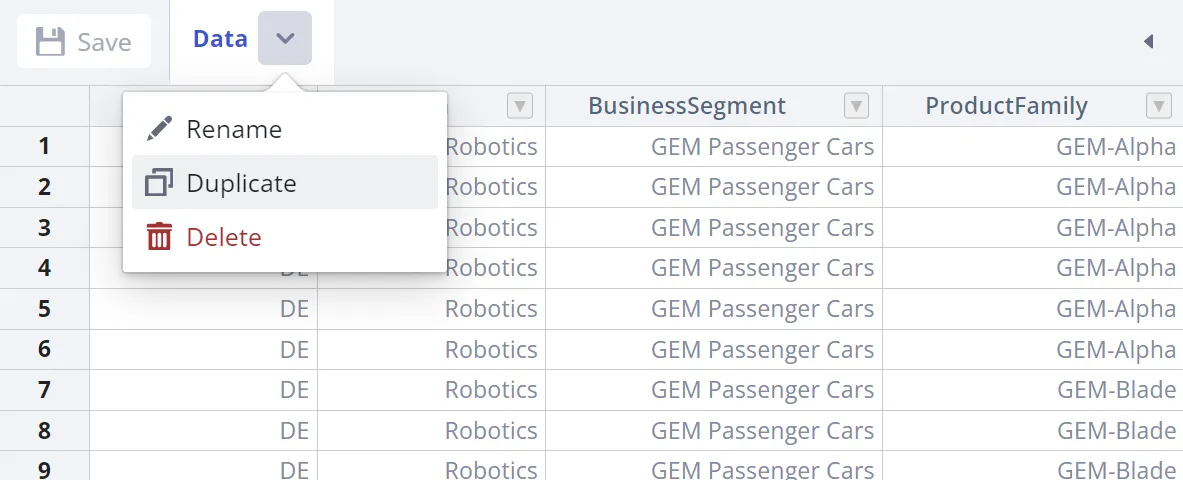
Double-click a variant’s name to rename it afterward.
Reordering variants
Reorder Variants, opened from the variant tab bar, lets you drag the variants into the order you want. The order you set is the order of the tabs. The action is disabled while a line-item has only one variant.
Line-Item variants in the workspace
Example
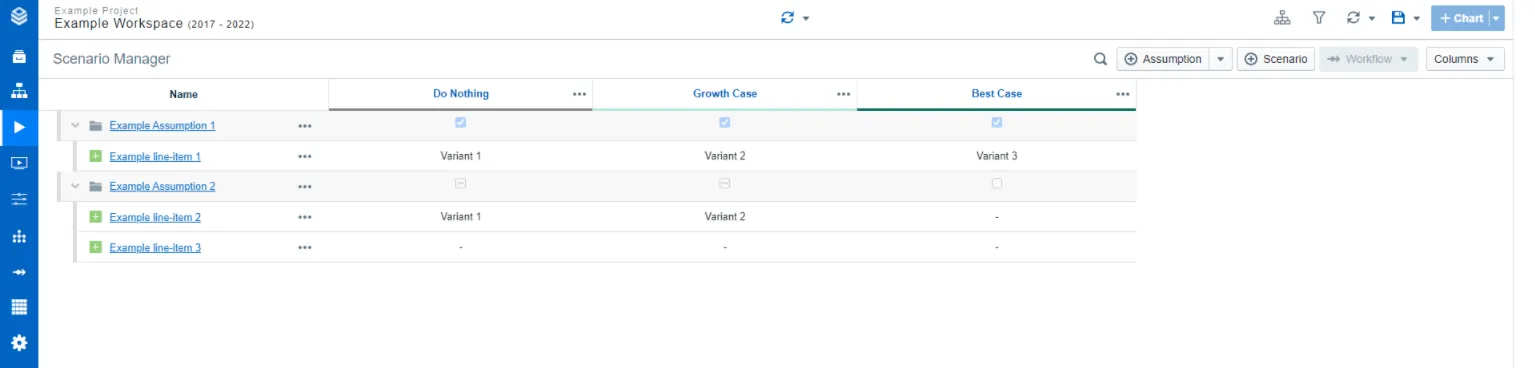
A variant can be used to simulate a scenario based on the same Line-Item but with for example slightly adjusted data.
Line-Item configurations
Filters work on a Line-Item level. If you set a filter on a Line-Item, it applies to all variants of this Line-Item.
Reconfigurations (e.g. filters, nodes) impact all Line-Item variants.
When duplicating, sharing, or versioning a Line-Item, all variants are included.
More information regarding the versioning of assumptions and Line-Items with variants can be found under Assumption Versioning.
Using sliders for Line-Items with more than one Line-Item variant is not possible. See Sliders to learn more.
Restrictions
- The Effect column cannot be used when a Line-Item has more than one Line-Item variant.
- The activation checkbox of the whole assumption is disabled in every scenario column as soon as any one of its Line-Items has multiple variants, with the tooltip ‘Multiselect is disabled for assumptions that contain line-items with multiple variants’. Each Line-Item then has to be switched on or off individually through its own variant dropdown, so a second variant costs you one-click activation of that assumption.