Expected Levels
Expected levels define the minimum dimensional shape for a node, allowing empty nodes to pass model validation and serve as blueprints for simulation.
When to use it
- When setting up simulation blueprints that will later be populated with line-item data
- When empty placeholder nodes should not block model validation
- When you want to document the intended shape of a node before its logic is fully defined
How it works
When you assign expected levels to a node, the system treats the node as if those dimensions are present. This means:
- The node passes model validation even without data
- Other nodes that reference it can resolve level expectations
- The node is ready to receive line-item data in simulations
Expected levels are a minimum-granularity contract rather than a pure placeholder, so they keep being checked once the node does produce data. Model validation then warns when the real levels do not hold up:
- The level the node actually produces for a dimension is coarser than the expected one
- An expected dimension is absent from the node altogether
- An expected level has since been deleted from its dimension
Clear expected levels once the node has a formula of its own. They are not switched off when the node is populated, so entries left over from the blueprint stage turn into validation warnings on a node that is otherwise finished.
Steps
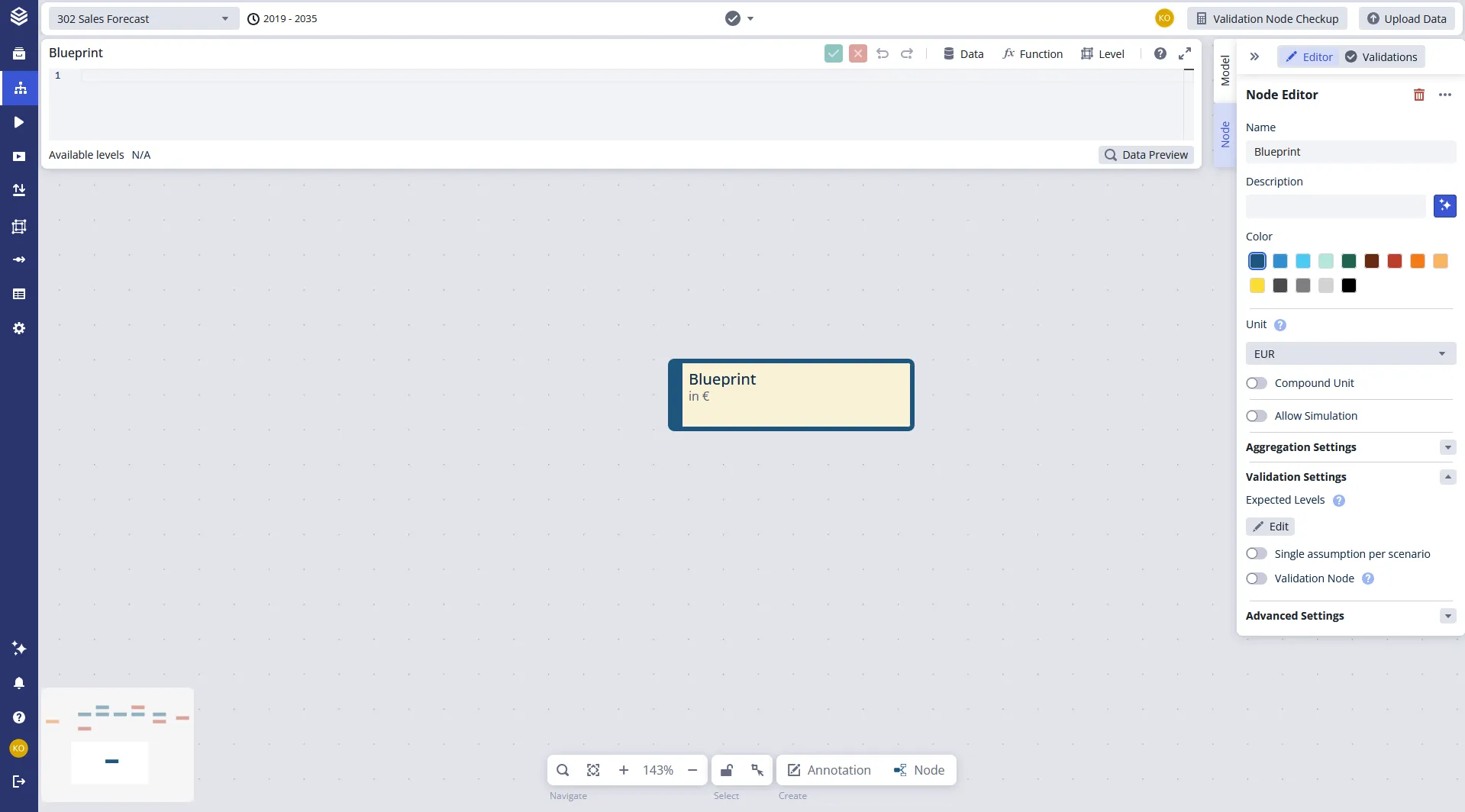
Identify the empty node
Select the node on the canvas. Without a formula, the node has no available levels.
Open the validation settings
In the Node Editor (right-side Context Panel), open the Validation Settings tab.
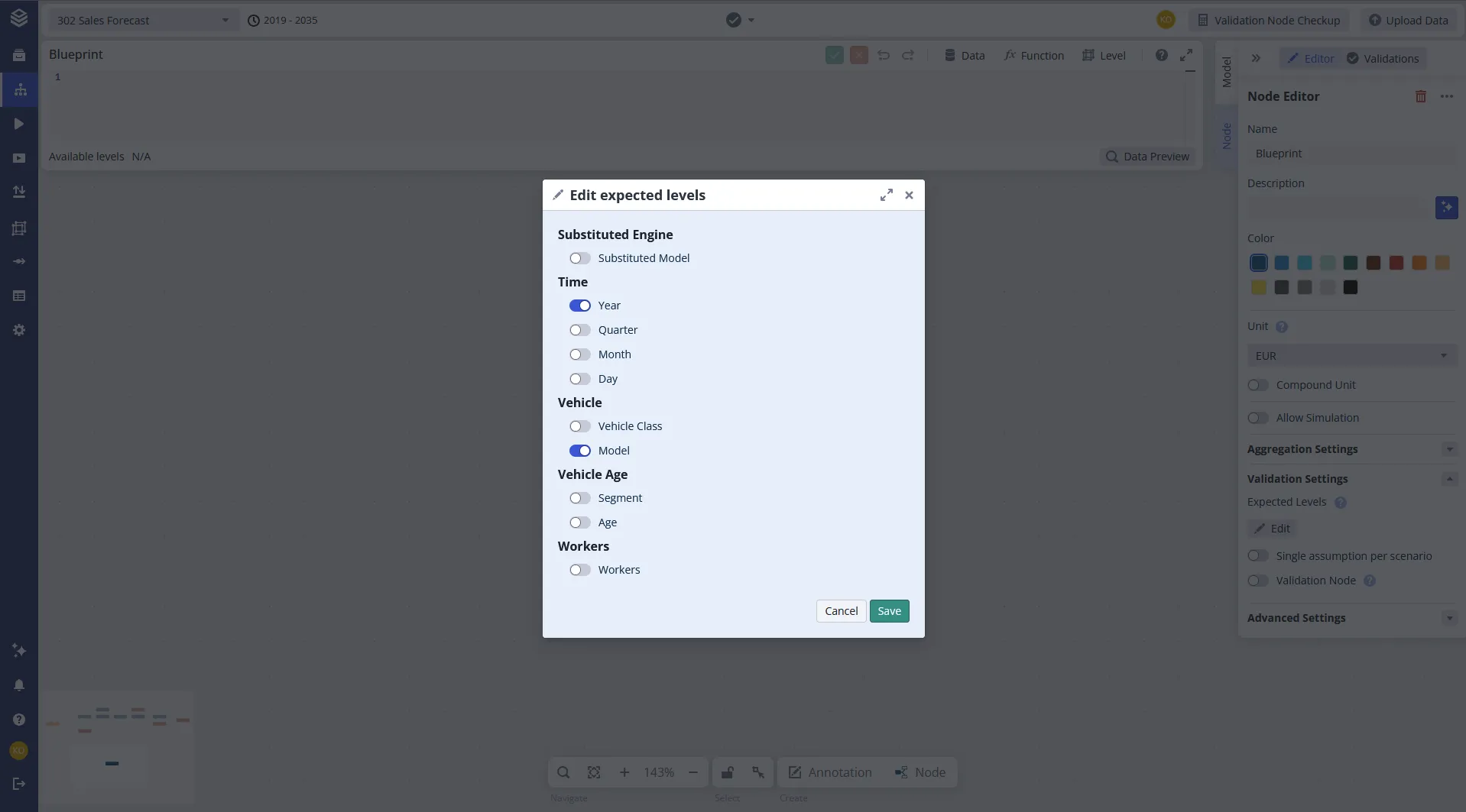
Add expected levels
Add all levels the node should have in the future under Expected Levels.
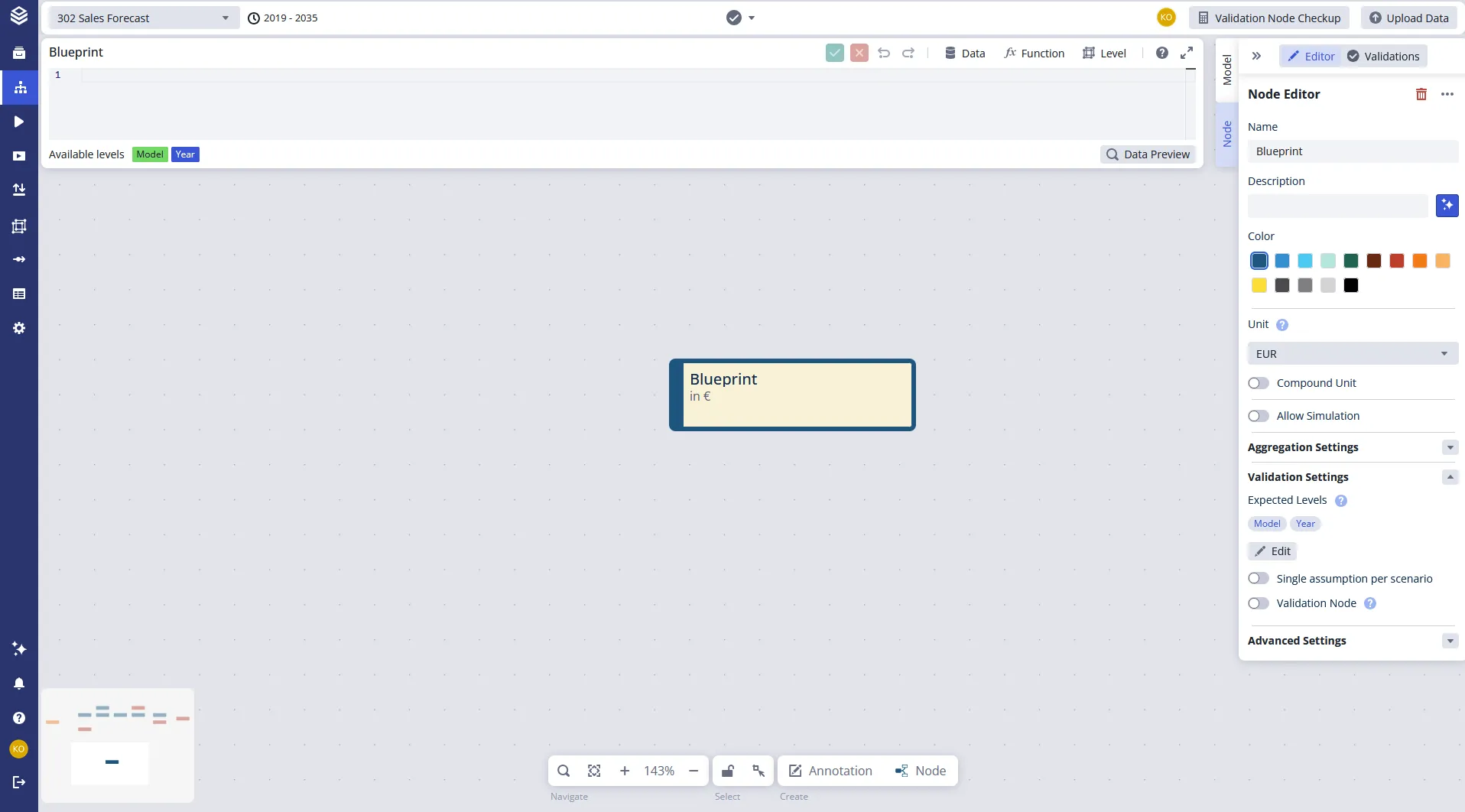
Save and verify
After saving, the node displays the chosen levels as available levels and passes model validation.
FAQ
Does setting expected levels add actual data to the node?
No. Expected levels only declare the dimensional shape. The node remains empty until data or a formula is assigned.
Can I change expected levels later?
Yes. Update them at any time through the Validation Settings tab in the editor.
When should I use expected levels instead of a formula?
Use expected levels when the node is intentionally empty (e.g. a simulation blueprint). Use a formula when the node should calculate or reference data.
Related
- Validation Nodes: define custom conditions that check model results
- Model Validation: how model validation uses expected levels
- Nodes: overview of node types and behavior