Login Page Customization
The login page can be customized in the global settings under “Login Page Settings”.
-
Providing a custom image that is displayed left of the login field. If no image is provided, a default will be used.
- Maximum file size: 1 MB
- CMYK color space not supported
-
An optional text message is displayed below the image. You can include and enable links in the text by providing a regular expression defining valid links using the featureFlag setting “allowedLinksFormat”. The text is limited to 400 characters and will be truncated if longer.
- To edit the regular expression, head to the configuration menu via the cogwheel on the navigation bar; from there go to → Settings → featureFlags.allowedLinksFormat listed below “Appearance”
- All links matching the specified regular expression will be shown as clickable links in the Valsight software. This includes the login page, descriptions ins projects/models/workspaces/workflow tiles, node descriptions in tables, node descriptions in the Inspector, node descriptions in the workspace validation, and assumption/line-item descriptions
- If you are unsure or otherwise want a standard ‘RegEx’ for this featureFlag, you can use one that allows only Valsight links:
(\bhttp?:\/\/(.*valsight)\.com\S*\b)- If external authentication providers using SAML or Open ID Connect are used, the button text can be customized.
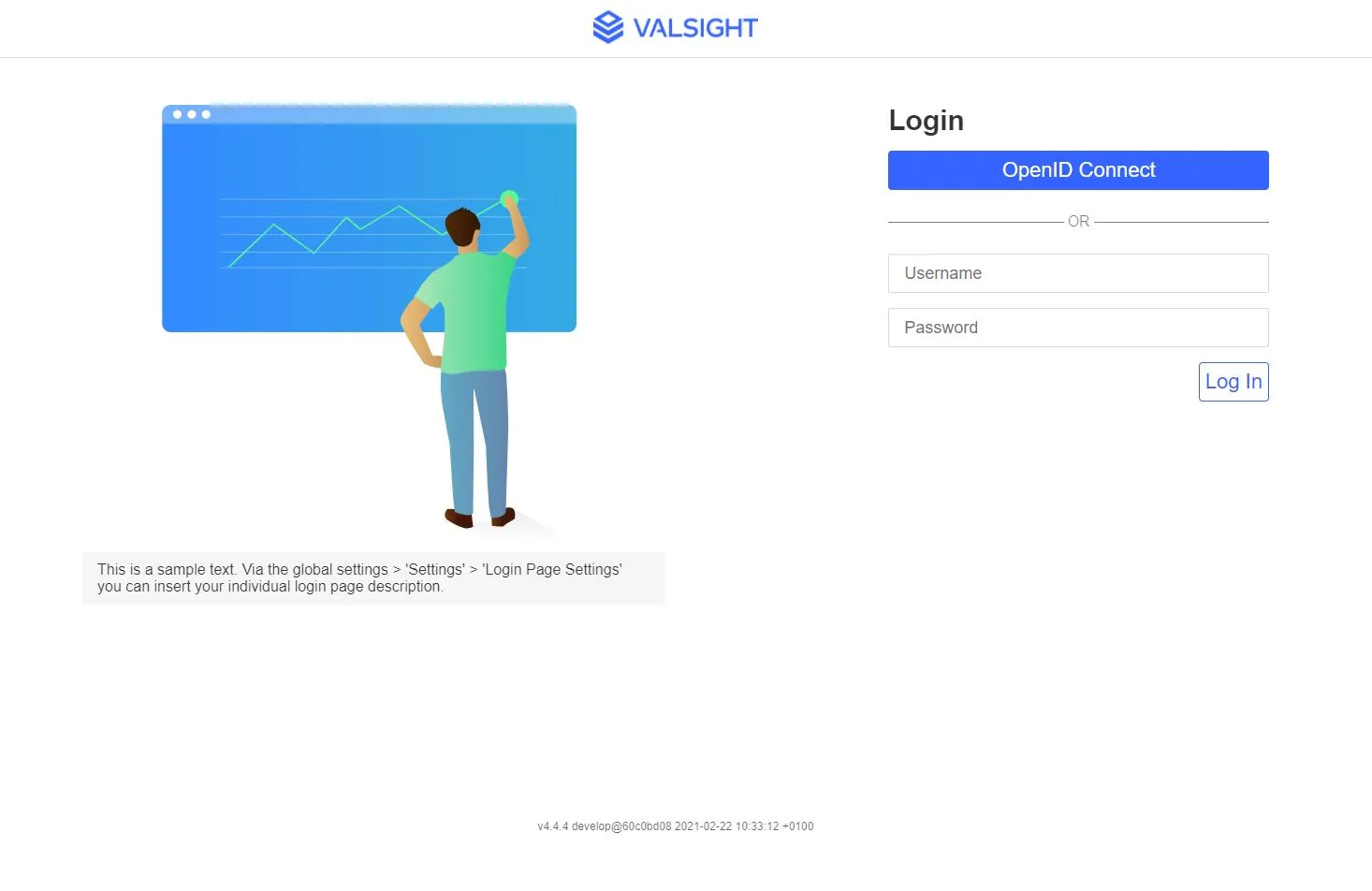
OpenID Connect button text and login flows
Available since 7.2.5 and 7.3.0.
The OpenID Connect configuration in conf/config.yml can also carry a default button label, so that a newly installed instance shows the right wording before anyone opens this settings page. The label saved here always wins over that default.
The same configuration can add a second, less prominent login option as a link below the OpenID Connect button, for users the primary login flow does not cover. Both are described under Alternative login flow in the OpenID Connect configuration guide.