Export Formats
With the introduction of the Export Manager it is now possible to version your exports as well as the OData Link. An OData Link can be used to either import versioned data of an export or create a connection to a Valsight export which will re-upload the most recent version of an export whenever a new version is triggered.
Available export formats
1. Excel
2. CSV
3. OData
3a. Live Link
3b. Versioned Link
3c. Specific Link
3d. Old Link
Export format description
1. Excel
Downloads the nodes with the selected scenario context as a XLSX file, where every node is a separate tab of the file. The first tab is not a node: it holds the export’s metadata and is the one open when you first open the file. A node using RATIO adds one or two extra tabs of its own.
2. CSV
Downloads the nodes with the selected scenario context as a CSV. The file is UTF-8, comma-separated, and uses the point as its decimal separator with no thousands grouping, whichever locale you work in. On a German system that means opening it through Excel’s text import rather than by double-clicking it. Cells that would otherwise look like a formula to Excel are prefixed so that spreadsheet software treats them as text.
3. OData
3a. Live link
Recommended if you want to have a fully live connection between the scenario in Valsight and wherever the OData link is called from. Especially useful for connecting to an external database.
To create a link to an export that is constantly synchronised with the data in Valsight, create a link to the export itself in the Export Overview. Simply browse or navigate to the desired export and click the download button. Select the ‘OData-live’ option and copy the link.
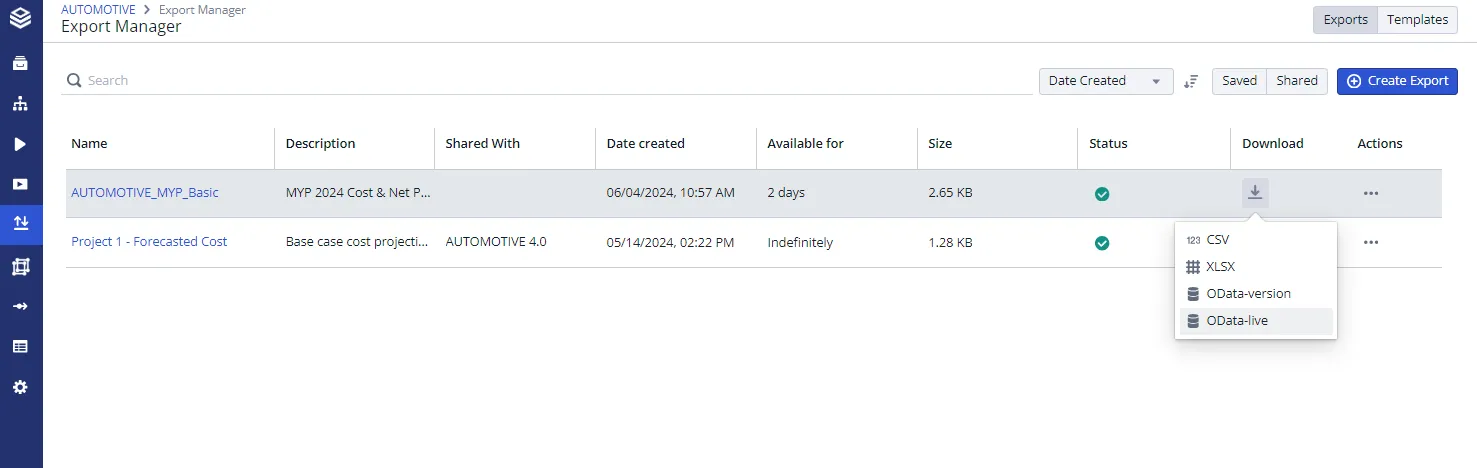
Any changes made in Valsight will be synchronised immediately.
3b. Versioned link
Recommended if you wish to import the latest version of the export, only when a new version is available in Valsight.
To generate a link to an export which will continuously update to the most recent export version available in Valsight, generate a link on the export itself in the export overview. Simply search for or navigate to your desired export and click on the download button. Select “OData-version” as the option and copy the Link. This link can now be used in external software to pull the latest version of this specific export, whenever a new version is created.
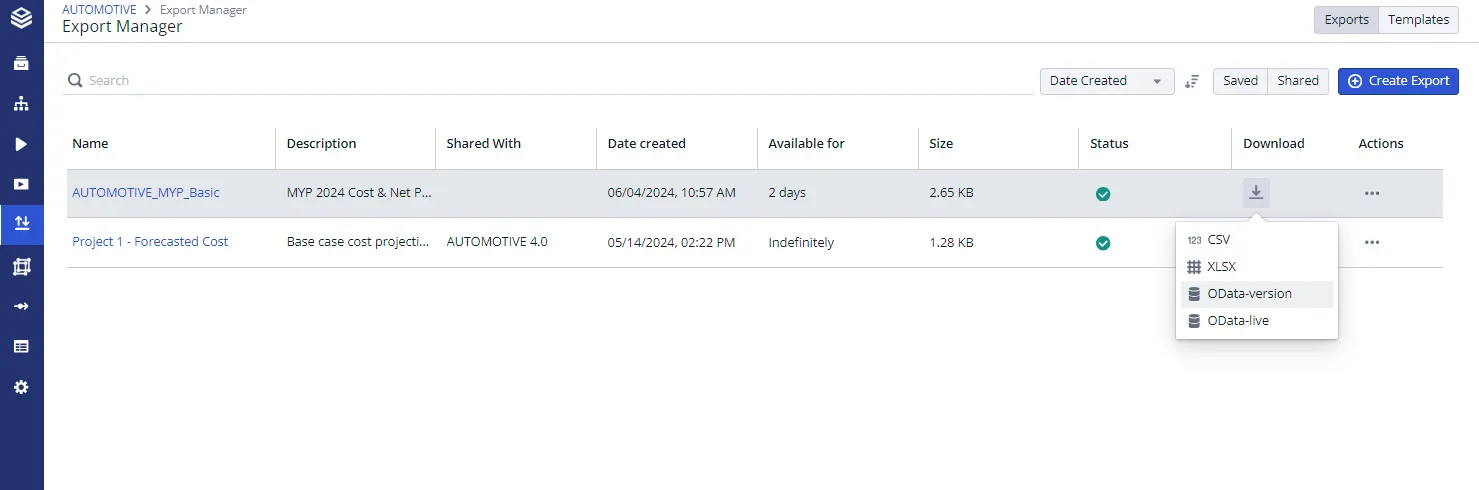
If the latest version failed to export, the OData link will still work and import the latest successful version. This is to ensure no external models will break if an export failed for an unexpected reason.
3c. Specific link
Recommended if you only wish to import data once.
To import a specific version of an export please navigate to the export version history page by clicking on the exports name. Select the desired version manually or by searching for the name, description, date created or the user which created the version. To get the OData link, click on the three-dot menu on the right of the selected version and select “Download as OData”. Copy the link and use it wherever you wish to import the data. As the version is saved, you can reuse the same link in different places to pull this specific version.
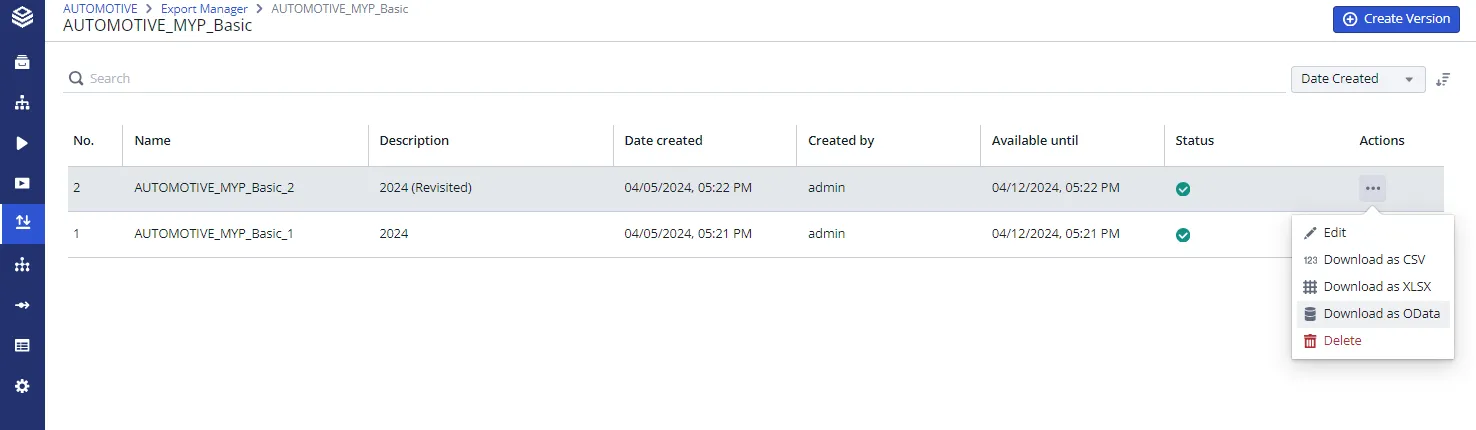
This OData link will not receive any newer versions and is not suitable if you wish to update data.
3d. Old link
For links generated before the column order was standardized.
These links act like the new ‘Live links’. Supported indefinitely.
Export formatting
The column order is predictable: it no longer depends on the levels or on the node operations, so it does not change when a node operation is altered.
The structure is:
- Standard Column Order: A CSV starts with ‘Scenario’, ‘Model’ and ‘Node’. An OData export starts with ‘RowNumber’, which is its row key, followed by the same three.
- Dimension Grouping: Levels are grouped by dimension and sorted alphabetically.
- Level Sorting: Within each dimension, levels with the same name are organized from top to bottom (e.g., Year, Quarter, Month).
- Measure Placement: Measure is consistently positioned at the end.
This way, an exports column order can no longer randomly changed because a node operation was altered.
This applies to both standard and OData scenario exports. If you have older reports built on the previous, unpredictable column order, update them to match.