DATA
DATA("DataSourceName", "TableName", "MeasureName" [, "Unit"])
The DATA function references a data table (an uploaded dataset, such as an Excel sheet) directly from within a node formula.
Use this function when you need to bring uploaded data into your Valsight model: DATA("Cost_Upload", "G&A_Upload", "Value").
Parameters
- DataSourceNameStringRequired
- Name of the data source in double quotes (e.g.
"Model Data"). - TableNameStringRequired
- Name of the table in double quotes (e.g.
"Gross_Sales"). If the data source is an Excel Workbook, this is the sheet name. - MeasureNameStringRequired
- Name of the measure column in double quotes (e.g.
"Price"). - UnitStringOptional
- Optional unit or ratio of two units. For a single unit, plain double quotes work (e.g.
"EUR"). For a ratio, each unit must be wrapped in single quotes (e.g."'EUR'/'Case'").
Using the data button
You can also create the function using the Data button in the Function Editor.
This allows you to select the data source, table, and measure from a dropdown menu instead of typing them manually.
Output shape
- Dimensionality
- Inherits the full dimensionality of the source table
- Values
- The selected measure column becomes the node value
- Row count
- Returns all rows from the referenced data table
Watch out
- Each DATA node references exactly one measure.
- If your table contains multiple measures, create separate DATA nodes for each.
- The category columns in your uploaded data (e.g. Region, Product, Month) must match the dimensions and levels configured in your project.
- The order of rows in the result may differ from the source table.
Examples
Basic data upload
Prerequisite
An Excel Workbook in the required Valsight format has been uploaded in the data management of Valsight.
See also: Restructuring Data in Excel using Power Query
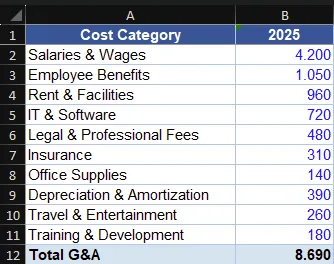
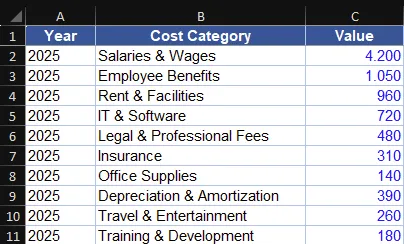
Formula: DATA("Cost_Upload", "G&A_Upload", "Value")
Result:
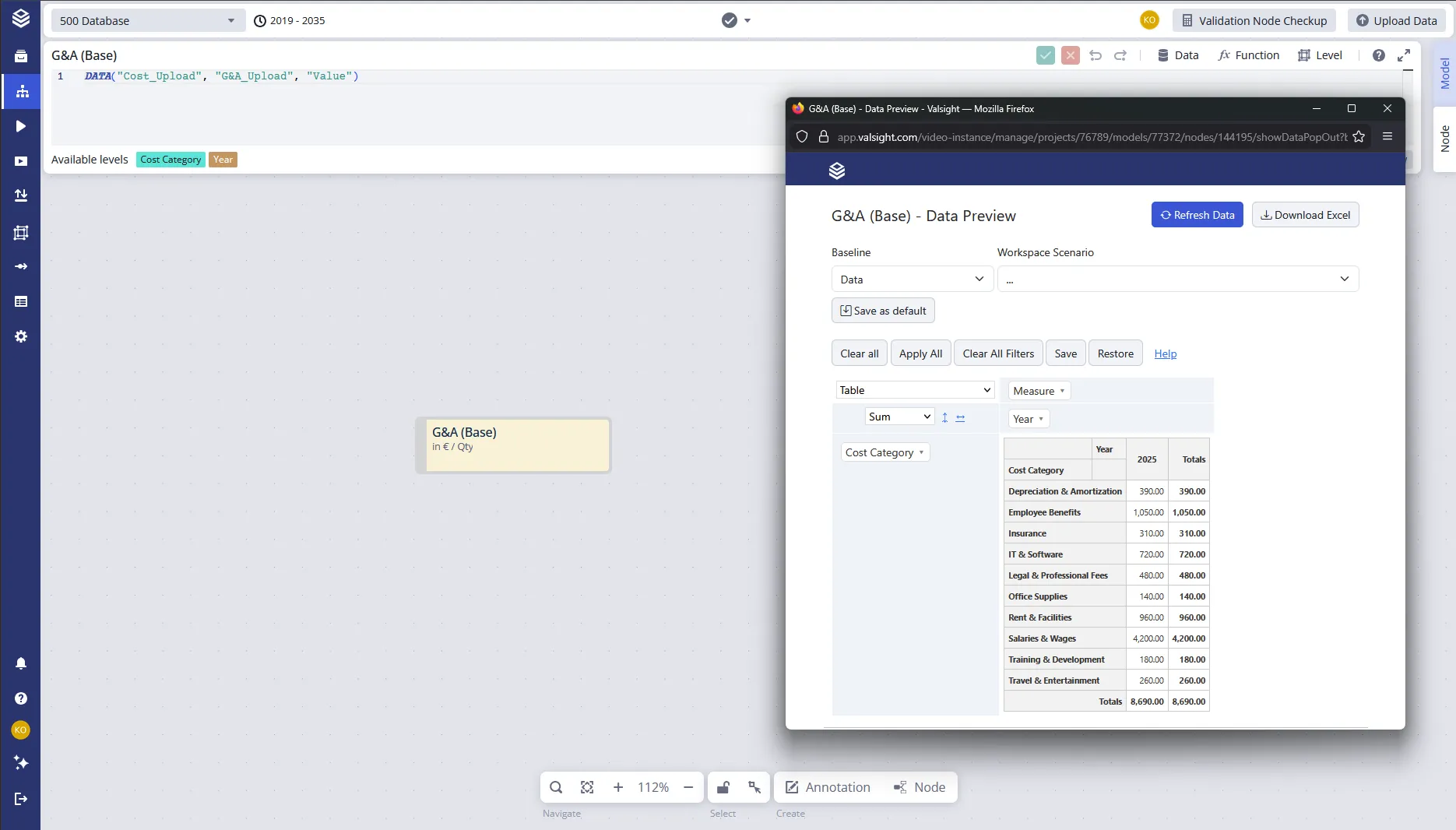
The node now contains the complete dataset with all dimensional detail.
Using an explicit unit
You can optionally define a unit for the returned values.
DATA("Cost_Upload", "G&A_Upload", "Value", "EUR")
This returns the same data but explicitly sets the node’s unit to Euro.
Using project variables
Project variables can be placed anywhere within any string parameter, as the full value, a suffix, or embedded in the middle, to dynamically reference data sources or tables. This allows scenarios to switch between different sources without changing the formula.
| Pattern | Example |
|---|---|
| Variable as full parameter | DATA("$DataSourceName", "TableName", "MeasureName") or DATA("DataSourceName", "$TableName", "MeasureName") |
| Variable appended to a prefix | DATA("Actuals_$Year", "TableName", "MeasureName") |
| Variable embedded mid-string | DATA("DataSourceName", "Table_$Variable", "MeasureName") |
Related
- EXPAND
- When your DATA node needs additional dimensional detail not present in the source table.
- FILTER
- When you need only a subset of the rows returned by DATA.
- ROLLFORWARD_ADVANCED
- When you need to project historical DATA values into future periods.