Scenario Manager
Learn what the Scenario Manager is, what it does, and which parts of Valsight it ties into.
- The Scenario Manager is the central control hub of all simulations
- It contains scenarios, assumptions, and line-items and allows you to modify data to build simulations
- It builds upon the base model and stores changes to its inputs
- You can im- and export scenarios, assumptions, and line-items via the Scenario Manager
- The Scenario Manager can be added as a tile in any worksheet
Overview
The Scenario Manager is the core part of Valsight. Using the Scenario Manager, you can edit the data of assumption groups and line-items, and activate and deactivate these line-items. The active line-items are then considered in the calculation of a scenario.
By modeling your business with Valsight and connecting data to the nodes in your model structure, you create a consistent baseline for the simulation of possible changes.
You can then calculate changes onto this baseline by simulating assumptions and measures as a delta on top of that baseline.
Using the simulated data, you can subsequently generate visualizations in the form of charts and tables in your workspace, allowing you to present the data to others in an apprehensive and readable format.
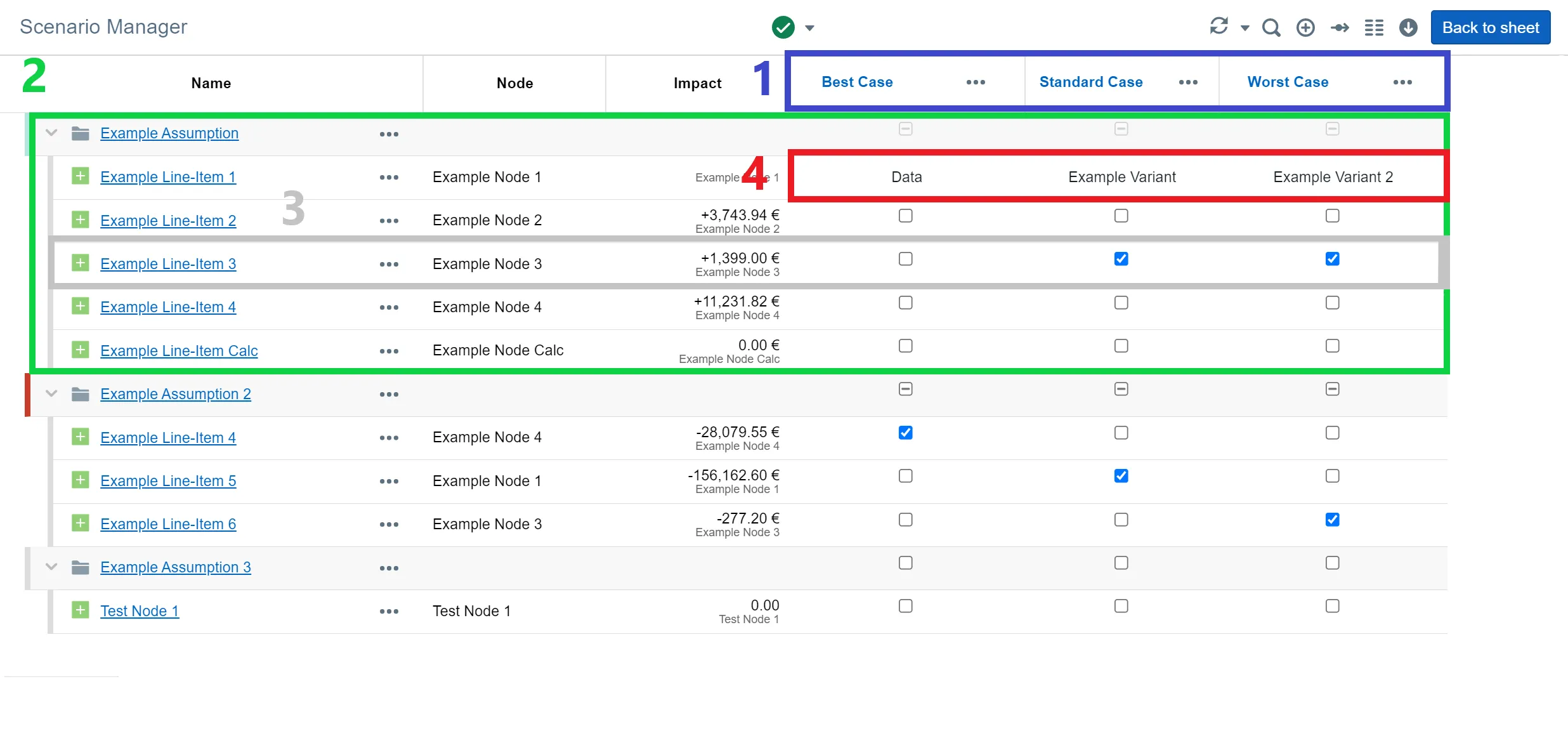
A view of the Scenario Manager with:
- Scenarios on top of the Scenario Manager
- An assumption group consisting of several line-items
- A line-item
- The scenarios columns, where line-items (and their variants) and assumptions are assigned to scenarios
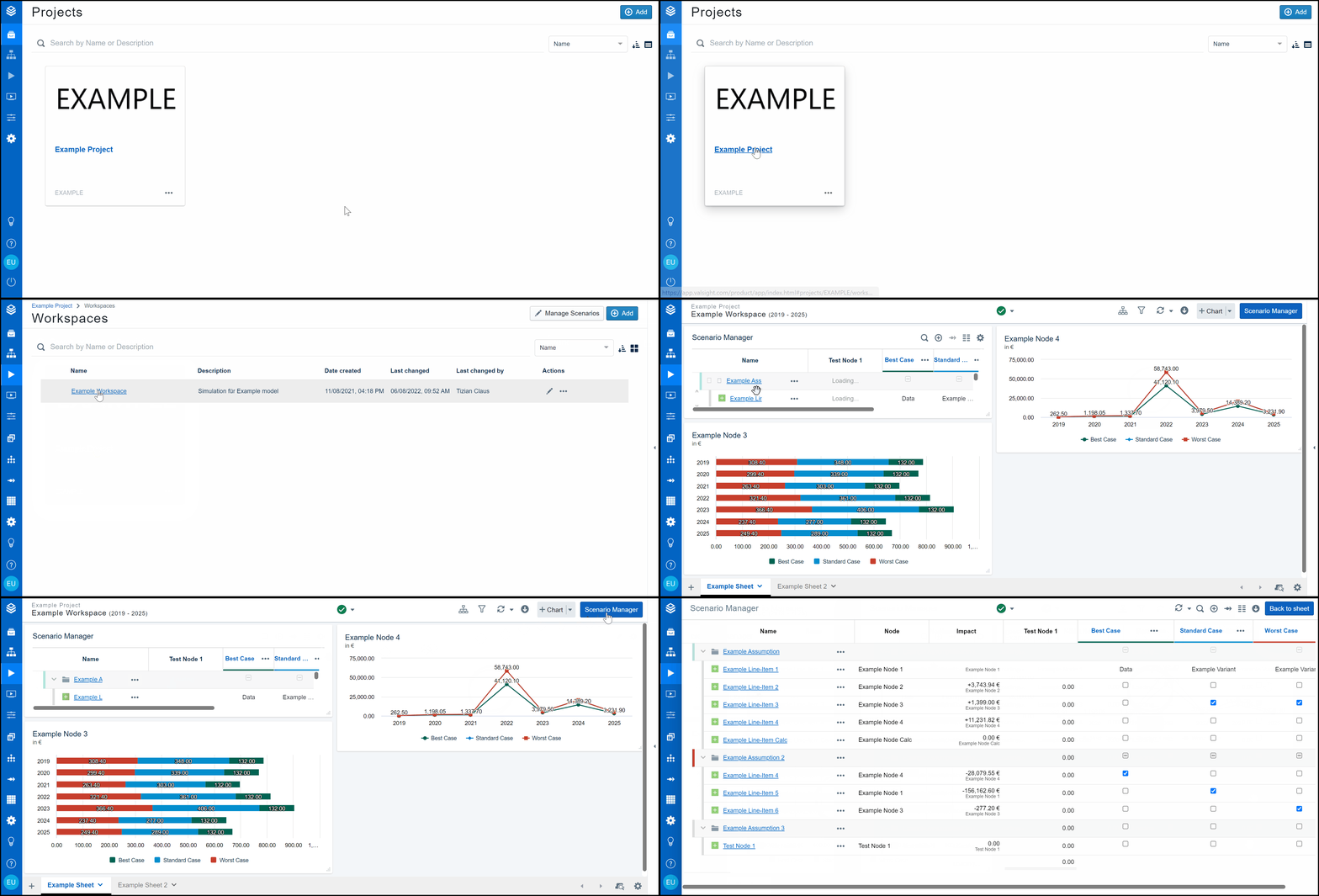
To use the Scenario Manager, enter the “Simulating” page from the navigation bar and select one of your workspaces. From there, you can access the Scenario Manager from any worksheet by using the “Scenario Manager” button in the upper right corner of the screen.
Controlling simulations
You can simulate several kinds of changes. These include absolute or relative changes to the base values of your data, as well as directly setting data to a specific value.
You can alsolink sliders, to modify your simulation data dynamically.
Scenarios
Scenarios in Valsight are changes to data based on possible strategic actions of your company (measures) or changes in the business environment (assumptions). Each assumption and measure is represented as a delta on your baseline.
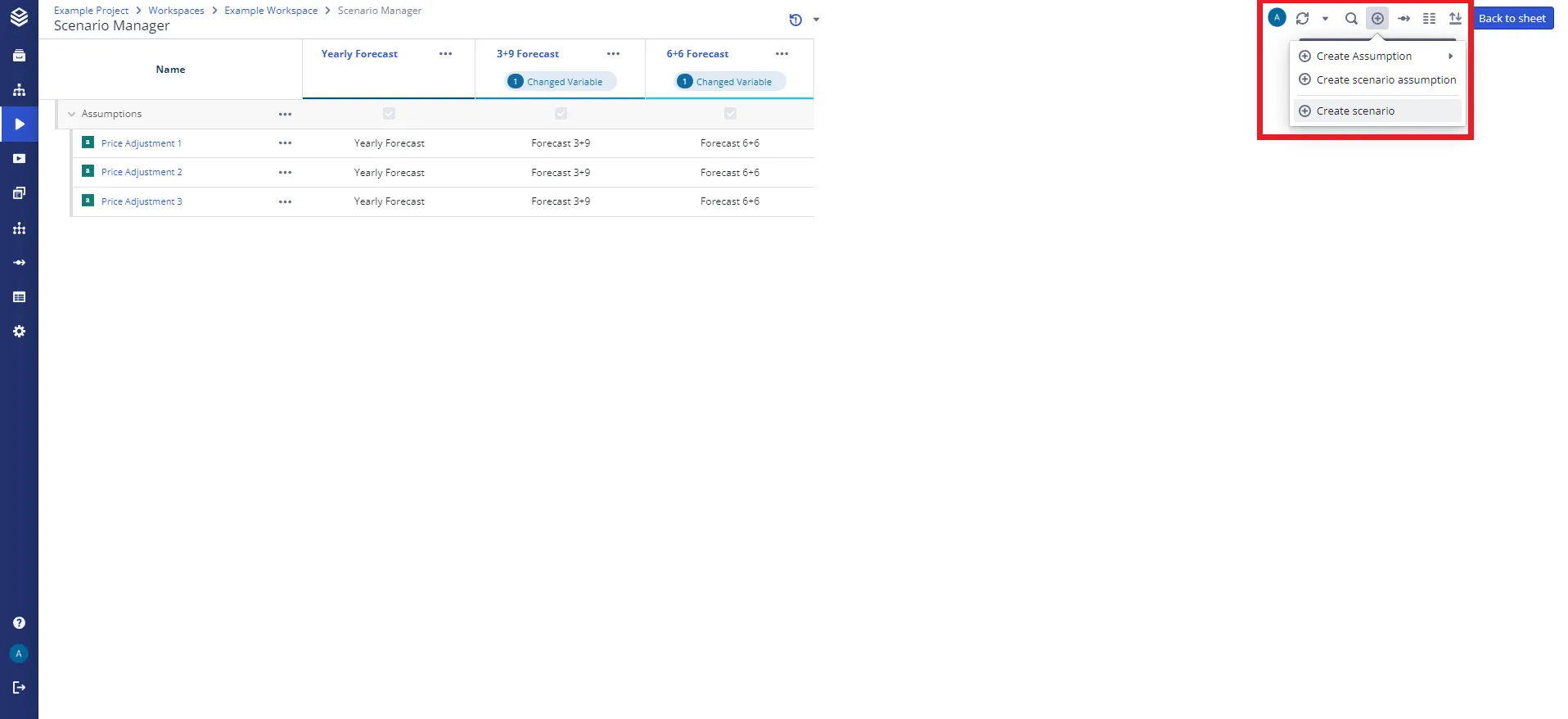
Scenarios are created with the “+” icon in the upper right corner of the Scenario Manager. Everything you can then do to one sits in its three-dot menu, in the scenario’s column header:
| Menu entry | What it does |
|---|---|
| Edit | Opens the “Edit Scenario” dialog on its Settings tab: the scenario’s name, description, the data baseline it is based on, and its color in charts. A second tab, Variables, activates project variables for this scenario. |
| Duplicate | Opens “Duplicate Scenario”, where you give the copy its own name, description and color. |
| Share | Publishes a snapshot of the scenario for other users. See Sharing Scenarios. |
| Versioning… | A submenu holding Save Version and Show History. See Scenario Versioning. |
| Download active Assumptions | Exports this one scenario as an xlsx file, with extra sheets for the assumptions and variables active in it. |
| Move Left, Move Right | Moves the scenario one column along. Greyed out at either end of the row. |
| Delete | Deletes the scenario. |
The three-dot menu is not always there. It is hidden in presentation mode, in a drill-down, and on a workspace you can only read.
If a scenario has variables overwritten in it, a round “Changed Variables” tag appears under its name with the number of them. Clicking that tag opens the same “Edit Scenario” dialog directly on its Variables tab.
Assumptions
Assumptions are collections of line-items. They group line-items into more manageable clusters, usually representing multiple similar or related changes to your base drivers.
Assumptions possess many of the same edit functionalities as scenarios, like the ability to be duplicated or to use saved, previous versions of them.
Common examples of assumptions are “Staff assumptions” or “Market Developments”. These represent collections of driver changes, that influence a specific sector of your business model.
Line-Items
Line-items are the instance of change to your base model. They affect a single node and can filter its content to apply even more specific changes.
By creating and combining line-items, you can build your simulation on a granular level. Line-items contain changes to the values of a node. These changes are stated either as a relative change (%) or as absolutes. Additionally, a line-item can consist of multiple variants, which are alternative versions of the same line-item based on the same node. This can be useful for certain exclusive assumptions, like “pessimistic” or “optimistic” market growth.
Like assumptions, line-items can be duplicated.
Additional functions and tools
Im- and exporting data
The Scenario Manager supports the im- and export of uploaded data, simplifying the creation and adjustment of scenarios, assumptions, and line-items.
You can upload XLSX files to base your simulation’s base data and scenarios on, or download scenarios, assumptions, and line-items to use with other software or workspaces.
If you want to learn more about this, we have an in-depth guide on the im- and export of data.
Interfaces
The Scenario Manager supports the use of common software interfaces to automate the creation and configuration of scenarios, assumptions, and line-items.
Valsight supports common data formats/interfaces such as XLSX, OData, or JDBC for Base Data, as well as JSON or CSV for importing and exporting processed data and visualizations.
Every part of the Valsight server can be accessed using a REST-based API. In order to simplify such ventures, Valsight ships a tool to handle cookie authentication and provide useful methods for accessing parts of it. A dedicated guide to the Valsight API clientcan be found here.
For further information on the im- and export of data to and from Valsight, please refer to the Importing/Exporting Files/Data Upload documentation page.
Versioning
The Scenario Manager allows you to save versions of scenarios and assumptions. They can later be restored to the state they were saved in. This proves useful for experimentation, as well as for optimization efforts, as it allows users to test different versions of a scenario or assumption by quickly switching between different versions.
If you want to learn more, we have a detailed guide on how and why to create and restore versions of assumptions.
For information on the versioning of scenarios, please look here.
Creating templates
Another key feature of Valsight is the creation of templates and their subsequent use through the template manager.
Creating templates can significantly reduce the necessary time to set up your simulations and enables you to comfortably reuse assumptions with other workspaces based on the same model.
If you want to know more about the creation of templates, take a look at the template manager page.
Using workflows
Valsight offers the option of using workflows with your Scenario Manager. Workflows are a useful tool for organizing processes and maintaining control over the tasks at hand.
Using workflows enables you to structure processes into several smaller increments, or steps, which can then be used as a guideline for completing tasks. This also enables collaboration between different users working on a project simultaneously.
A dedicated guide on workflows, and how to create and use them effectively,can be found here.