Sort Key Settings in Nodes
A node in a model tree that has no sort key sorts under its own name, which is why costs land above revenue. That order rarely matches how a statement is read. A node’s sort key fixes it.
Goal
Put the nodes of a model tree in a deliberate order, so the tree reads the way your audience expects.
Prerequisites
- Edit rights on the model the nodes live in, since the setting is on the node rather than on the chart.
Steps
-
Open the model and select the node you want to move.
-
Click Show Advanced Settings.
-
Enter a sort key. The keys sort in ascending order, so give the node that should come first the lowest key. A node left without a key sorts under its own name, alongside the nodes that do have keys.
The comparison is numeric-aware, so
A2comes beforeA10rather than after it. Sorting is applied among siblings, that is among the nodes that share a parent, not across the tree as a whole.In this example Revenue is given
A1and Costs is givenB2, which puts revenue above costs: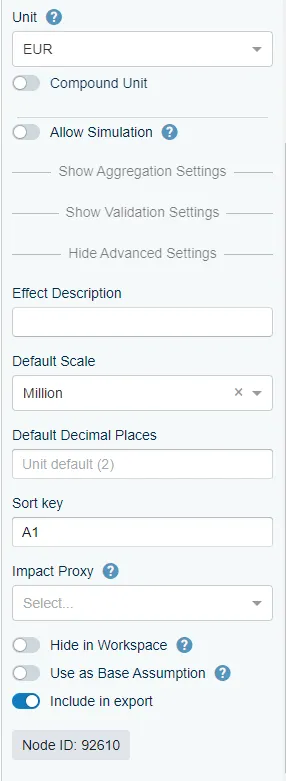
-
Repeat for the other nodes you want to place.
Verify
The model tree is sorted accordingly, with revenue above costs:
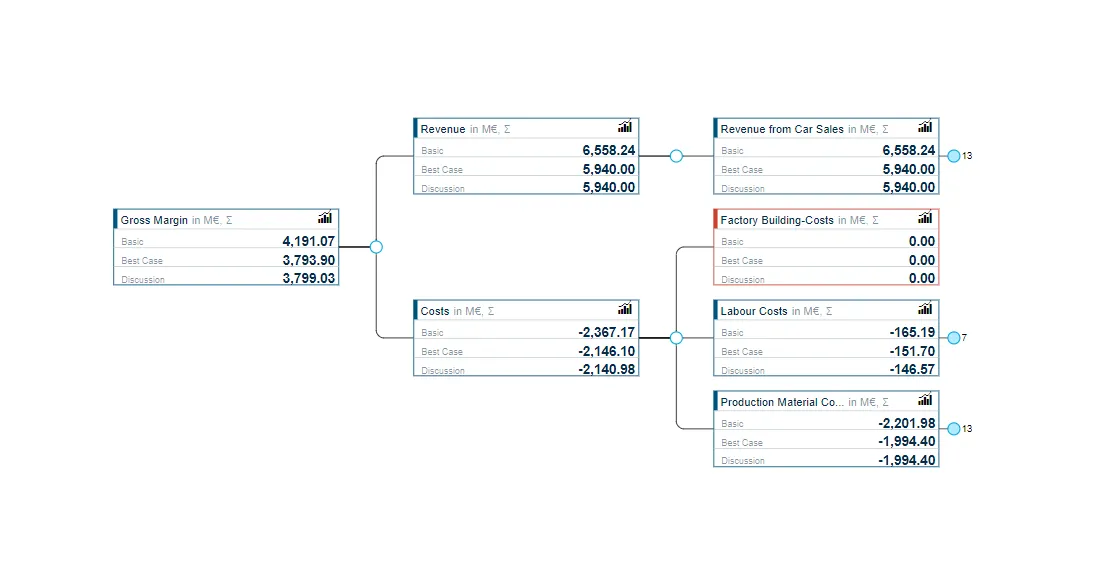
If nothing moved, check that you set the key on the node rather than in the chart, that the keys you used actually sort in the intended order, and that the nodes you are trying to reorder share a parent.
Related
- Model Tree: the chart type this order applies to.
- Advanced Node Settings: the other settings on a node, including hide in workspace.
- Sorting Level Values: ordering the values within a single chart, rather than the nodes across a model.